Your profile
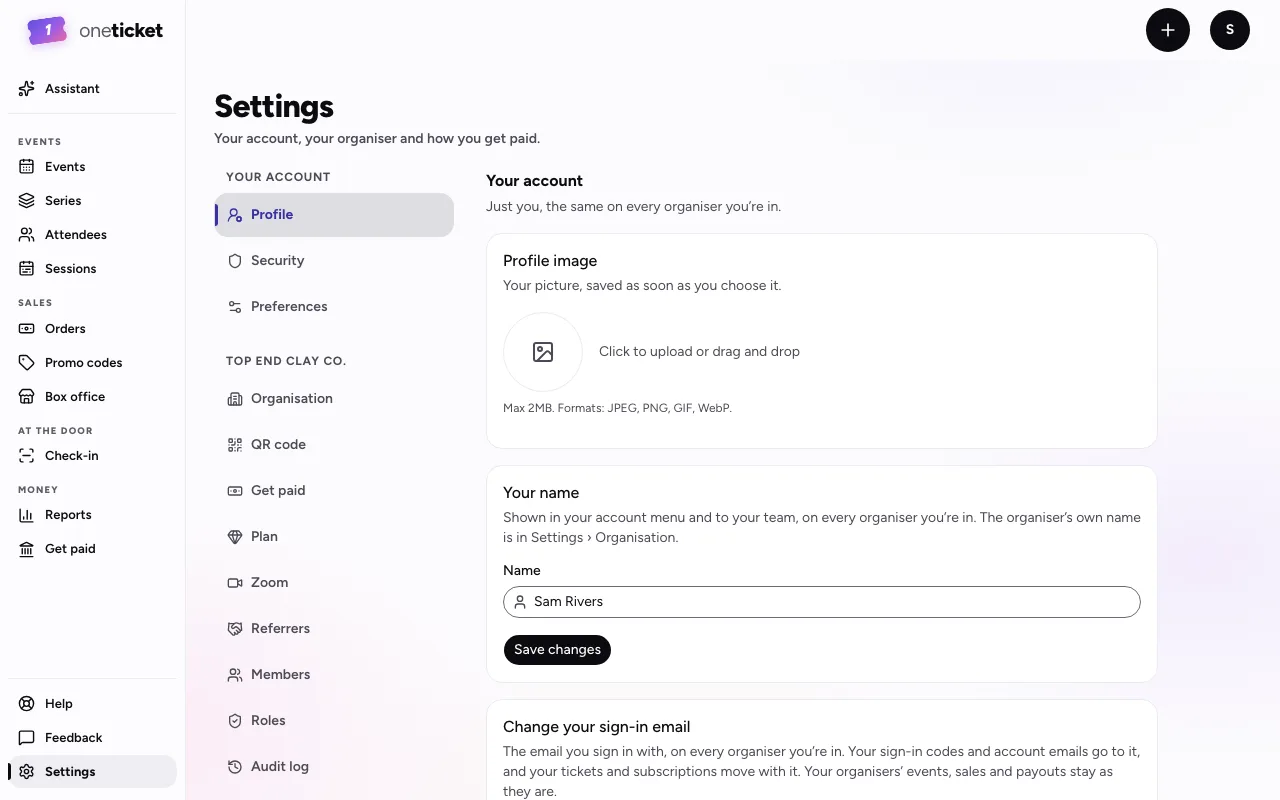
Change your name, profile picture and sign-in email in Settings. Your profile is you, on every organiser: your organiser's name and logo are set elsewhere.
Your profile is you, not your organiser: the same on every organiser you're in. Your name shows in your account menu, to your team and on things you change.
- Go to Settings. Profile opens first.
- Under Profile image, click to upload a picture (JPEG, PNG, GIF or WebP, up to 2 MB).
- Under Your name, type your name and choose Save changes.
Change your sign-in email
You can move your account to a different email address: a new address of your own, or someone else's if you're handing the whole account over. It's the address you sign in with on every organiser you're in: from then on sign-in codes and account emails go there, and your tickets and subscriptions move with it. Your organisers' events, sales, payouts and team stay exactly as they are.
To give someone else, like a client, their own login to your organiser, don't change yours: invite them under Settings, Members. Owners can invite, and on Team admins too; on Free it's just the owner (see Team members and roles). If they should run it, an owner then chooses Make owner from their menu. A member asks an owner to invite them.
- Go to Settings. Profile opens first.
- Under Change your sign-in email, type the New email address, then Type it again.
- Choose Change sign-in email. You'll see "Approval sent to your current address".
- Open the email we sent to your current address and choose Approve Email Change.
- We then email the new address. Open it there and confirm. Only now does the address change.
Both steps are needed, so nobody can move your account without your current inbox. If the new address already has a One Ticket account, the change can't go through.
You can ask five times an hour. If it says to sign in with an emailed code first, sign out, sign back in with a code sent to your current address, then try again.
To change your organiser's name or logo instead, see Your organiser page. For passwords and two-step sign-in, see Sign-in and security.
Still stuck? Contact support and a person will get back to you.