Subscribers
Who subscribes to your series, what they pay, skipping a week, unpaid weeks, refunding a term pass, and pausing, cancelling or editing a subscription.
Once someone subscribes to a series, Orders gets a Subscriptions tab.
See your subscribers
- Choose Orders, then the Subscriptions tab.
- The figures show Active subscribers, the estimated Gross per month, how many are Past due and how many were Cancelled this month.
- Narrow the list with Search (name or email), the Series chip, or the status chips: Active, Paused, Cancelled or Past due, each with its count. Clear shows everyone again.
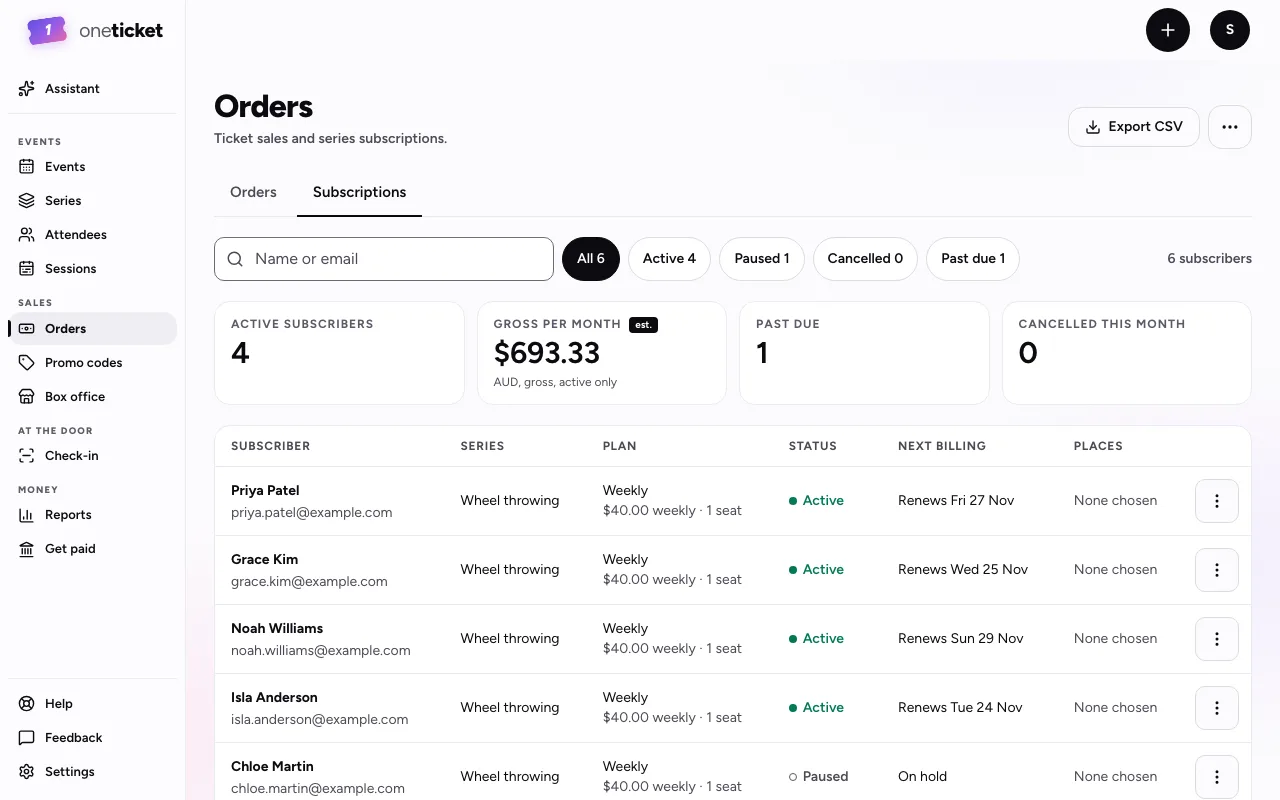
Each row shows the subscriber, the series, their plan and price, their status, their next billing date and the places they chose. A term pass holder's plan says "Term pass ·" its name and dates, and their billing says "Until" its last day.
A subscriber's details
Open the menu (⋮) and choose View details to see their plan, seats, who else it covers, their payments and the tickets issued to them. Copy email copies their address.
What you can do from the menu
Open a subscriber's menu (⋮). What it offers depends on their status:
Edit name or email: put right a typo in their name or address. Their tickets and the next ticket email follow the change. A new email is confirmed from their previous address first: we email it what changed and a link to confirm. Until it's confirmed, a paid plan's card receipts stay at the previous address, and the new address can't charge their card (no dearer plan, no restarting billing, no card changes). An address that already has its own subscription to the series can't be used.
Email next ticket: sends the tickets for their next session again, to each person the plan covers. Tickets go out a week before each session, so there may be none yet.
Pause: billing stops for now and they're emailed. Sessions they've already paid for keep their tickets.
Resume: billing starts again, for a subscription you paused. If they paused it themselves, or their paid time has run out, only they can resume it from their manage page.
Undo cancel: keeps a subscription you set to end. If they cancelled it themselves, only they can keep it.
Cancel: for a paid subscription that's billing, choose At the end of the period (it keeps working until then and they're not charged again) or Now (billing stops today and nothing they've paid is refunded; tickets already issued still work, and no more are issued). A free, paused or past-due subscription ends straight away.
Delete: removes them from your list and stops billing straight away. Nothing they've paid is refunded. Prefer Cancel to end at the period's end.
Refund term pass (a term pass, while something of it is left to refund): refund all of it, which ends the pass and its tickets to sessions still to come, or part, which keeps it going. See Refund a term pass.
A term pass has no Pause, Resume or Cancel: it was paid once and ends by itself after its last day.
They're emailed about each change except an edit of their name. A changed email is sent to their previous address, to confirm.
If you set a subscription to end, only you can undo that: the subscriber can't keep it from their manage page.
Skip a week
When you cancel a session, say for a public holiday or a booked-out hall, Skip a week means subscribers aren't charged for that week. Nobody is charged during the skipped week, and a payment that moves always lands after it. On a weekly plan that week's payment isn't taken and the others stay the same. On a longer plan (fortnightly, every 4 weeks or monthly), a payment due in the seven days up to the session moves a week later; if they paid before that, that payment stays and their next payment after the week moves a week later instead (the week is added to the period they paid for), and the ones after it follow. Anyone on your team who can refund orders can use it.
- Choose Orders, then the Subscriptions tab.
- Open the ⋯ menu at the top right and choose Skip a week: everyone it can skip starts ticked. To pick people first, choose Select subscribers in the same menu, tick them (or Select all), then choose Skip a week in the bar.
- Choose the Series and the Week to skip. The weeks are the series' coming sessions on the days it usually runs, up to about six months ahead (26 at most): each says what runs that week (In person, Online, Session cancelled or Not on sale), and one you've already skipped says "(skipped)".
- Under Subscribers, tick who it's for. Each shows what happens to their payment, on their own billing day. On a weekly plan: "Not charged Tue 29 Dec · next payment Tue 5 Jan". On a longer plan, the payment that moves and where to: "Payment Tue 29 Dec → Tue 5 Jan" for one due that week, or "Payment Fri 15 Jan → Fri 22 Jan" for a monthly plan that paid on 15 December. Someone whose week (Monday to Sunday) you've already skipped on another of its days says "Already skipped" and that day: one week each, whichever day.
- Add a Reason (optional): it goes in their email.
- Choose Skip a week for N people.
New subscribers too. When the week's session is cancelled, the dialog has a box under the list, Also skip it for new subscribers, and it's on already. Leave it on and anyone who subscribes from when you opened the list until that session starts isn't charged for that week either: you don't need to come back and skip it for them. It works with nobody ticked too: the button then says Skip it for new subscribers. People already on the list are the ones you tick, as before. New subscribers see it on the subscribe page ("No session Tue 29 Dec: you won't be charged for that week") and in their welcome email (Week free); their payments move as an existing subscriber's would. Someone who joins during that week, before the session, pays at signup as usual, and their next payment comes a week later. This now works when you skip by hand too: someone who subscribed that week, before the session, can be ticked. Someone who joins after the session has started isn't included: they never paid for it. Each week skipped this way shows over the list on the Subscriptions tab ("Tue 29 Dec skipped for new subscribers"), with Stop: after that, new subscribers pay for that week as usual, and anyone already given it keeps it (so does anyone who was already at checkout). If the session goes back on sale, new subscribers pay as usual and get the session; cancel it again and the skip applies again. If someone can't be given it (for example, a monthly payment of theirs was already taken that week), the list says so beside their name. The box only appears for a cancelled session, not a draft or one just taken off sale: for a week still on, the dialog says to cancel that session first. A cancelled week shows in the dialog even when nobody on the list can be skipped, and a series' page has Skip a week for new subscribers while it has a cancelled session coming up.
Only one payment is skipped or moved (on a longer plan, the ones after it follow). If it's their next payment, that happens straight away. If it's a later one, every payment before it is taken as usual, and that one is skipped (or moved) when it comes up: the list says "Skips Tue 29 Dec · next Tue 5 Jan" beside them until then ("Moves Fri 15 Jan → Fri 22 Jan" on a longer plan), and "Skipped to" and their next payment date after. Each one is emailed "No payment for the week of …" as you skip it, with your reason; they aren't emailed again when the payment is skipped. The email says the session is cancelled only when it is: skip a week whose session is still on, and it says the session still runs and their ticket comes as usual. Nothing else changes: tickets for the sessions after it come as usual.
Some subscribers can't be skipped, and the list says why: Paused, Payment failed (Stripe is retrying it), Ending, Free, Ended, no billing date yet, a payment of theirs already taken that week, or a next payment too far ahead to move (about two years). A subscriber whose renewal is being paid at that moment says "Renewal in progress: try again in an hour". Skipping the same week twice for someone changes nothing. If a subscription ends before the payment for that week comes up, there's nothing to skip.
Term passes aren't in the list: they were paid once, so there's nothing to skip.
Skip a week changes payments only: cancel the session itself as usual (see Cancel an event), so anyone with a single ticket is told and refunded.
Unpaid weeks
When a subscriber's renewal fails, they show as Past due here. On the Orders tab, a ticket of theirs for a session after the time they'd paid up to says Payment failed: ticket stopped, and the Payment failed figure over the list counts them. Its ticket stops working until the payment goes through, and is issued again then. See Find an order.
Still stuck? Contact support and a person will get back to you.