Sessions calendar
Every session on a month, week or day: how full each is, which aren't filling, and a day sheet to print for the door.
Sessions shows every session you run on a calendar: the sessions of your series and your one-off events alike. Each says its time, its name and how many places have gone.
Open the calendar
Choose Sessions in the menu on the left, under Events. On a phone, tap More, then Sessions.
- Month, Week and Day change what the calendar shows. The arrows move to the previous or next one, and Today comes back to now.
- Series shows one series' sessions only (so does ⋮ → Sessions and bookings on a series' page). All sessions shows everything again.
- Choose a session to open its page, where you can edit it, see its orders and check people in.
- Choose a day's date to see that day on its own.
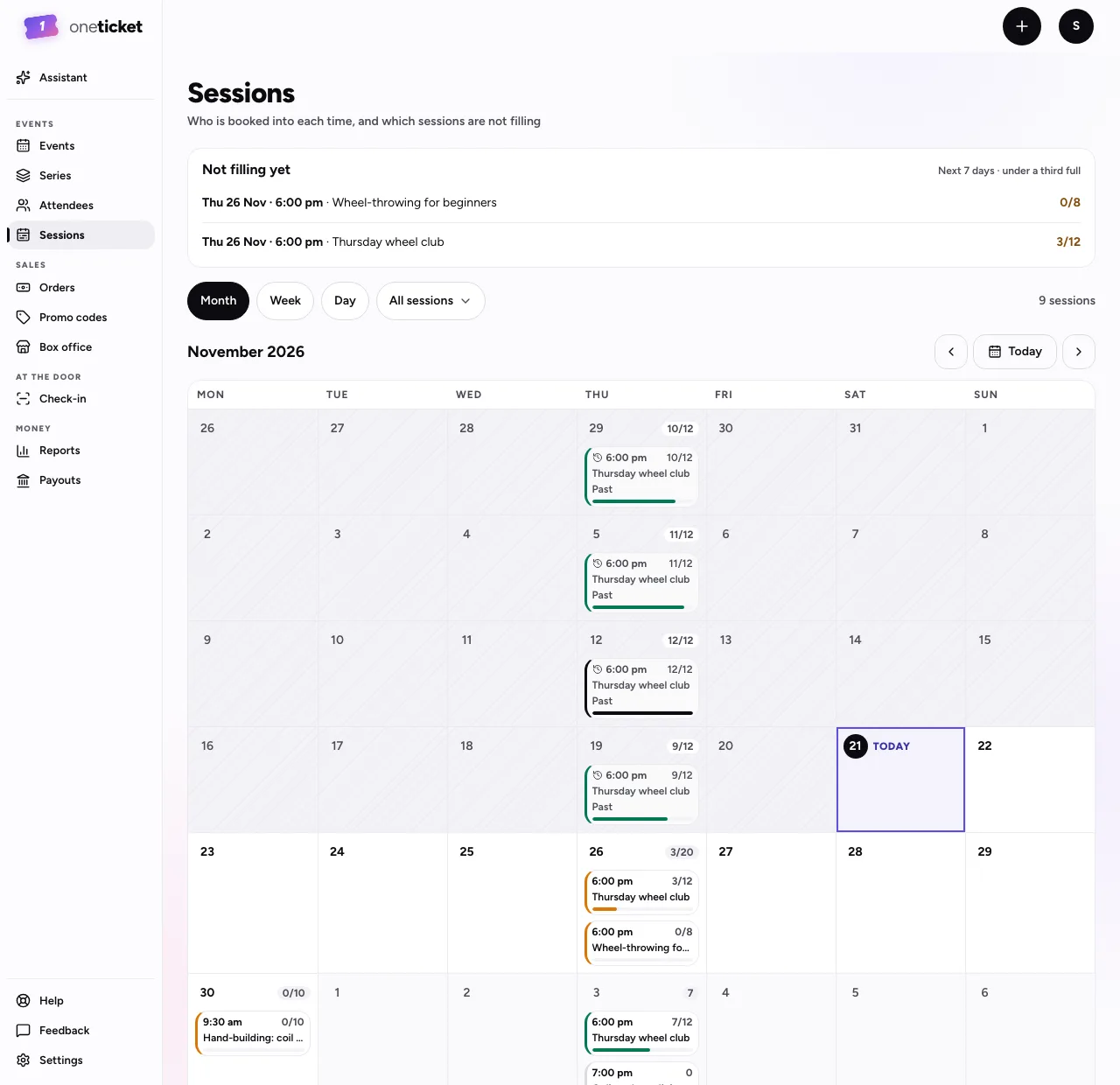
Each session shows how many places have gone out of how many there are, for example 3/10, and a bar along its edge:
- Green: filling.
- Amber: under a third full.
- Dark: full.
A session with no limit on places shows how many are booked, with no bar. A session that isn't on sale says so under its name: Draft, Past, Cancelled or Under review.
A premiere played several times a day is one entry a day, such as Webinar ×12, with the day's places added up. Choose it to open the day, where each time is listed with who's booked into it.
Past, today and coming up
The calendar shows at a glance what's over, what's today and what's still to come:
- Past days are greyed with faint stripes, and their sessions are greyed with a small clock and the word Past. You can still open them.
- Today is outlined, its date is filled in and it says Today. A session that has started and not yet finished says On now.
- On the week and the day, a Now line with the time sits between the sessions that have started and the ones still to come.
- The day view says Yesterday, Today or Tomorrow beside the date, or Past for an earlier day.
On a phone the month and week are a list of the days with something on, each day's sessions under it: Today first, then Coming up. Days already over are folded away above today: tap Show earlier sessions to see them.
Not filling yet
When a session in the next 7 days is on sale and under a third full, it's listed above the calendar under Not filling yet, the emptiest first, so you can share it or send a reminder in time.
Print a day sheet
- Choose Day, or a date on the calendar.
- Choose Print day sheet.
The sheet lists each session that day, earliest first, with everyone booked into it, their ticket type, and a box to tick at the door. Anyone already checked in is ticked. Your browser's print window opens by itself; choose Print to print it again, or Back to sessions.
Team notes
A team note is a private note on one session for your team: "Mia is bringing her own mat", "the 7:50 is a staff trial". Attendees never see it.
- Choose the session to open its page.
- Under Team notes, write the note and choose Save note. To remove it, empty the box and save.
The note shows under the session on the Day view and on the printed day sheet, and above the tabs on the scanner when your team checks people in. It isn't shown on a volunteer's door link. Team members who can edit events can change it; the rest of the team can read it. Each change is in the audit log.
Time zones
The calendar's days are your own. A session in another time zone is shown on the day it falls where you are, at its own time with its zone's name, for example 7:00 pm AWST. Whether a session is past or on now goes by its own clock, so a Perth session at 7 pm is on now at 7 pm in Perth.
See Series and Repeating events to make sessions, and Check people in for the door.
Still stuck? Contact support and a person will get back to you.