Notifications and preferences
Choose which emails your organiser's owners get, whether buyers get checkout reminders, your own colours and font, and what's in your menu.
Go to Settings, then Preferences.
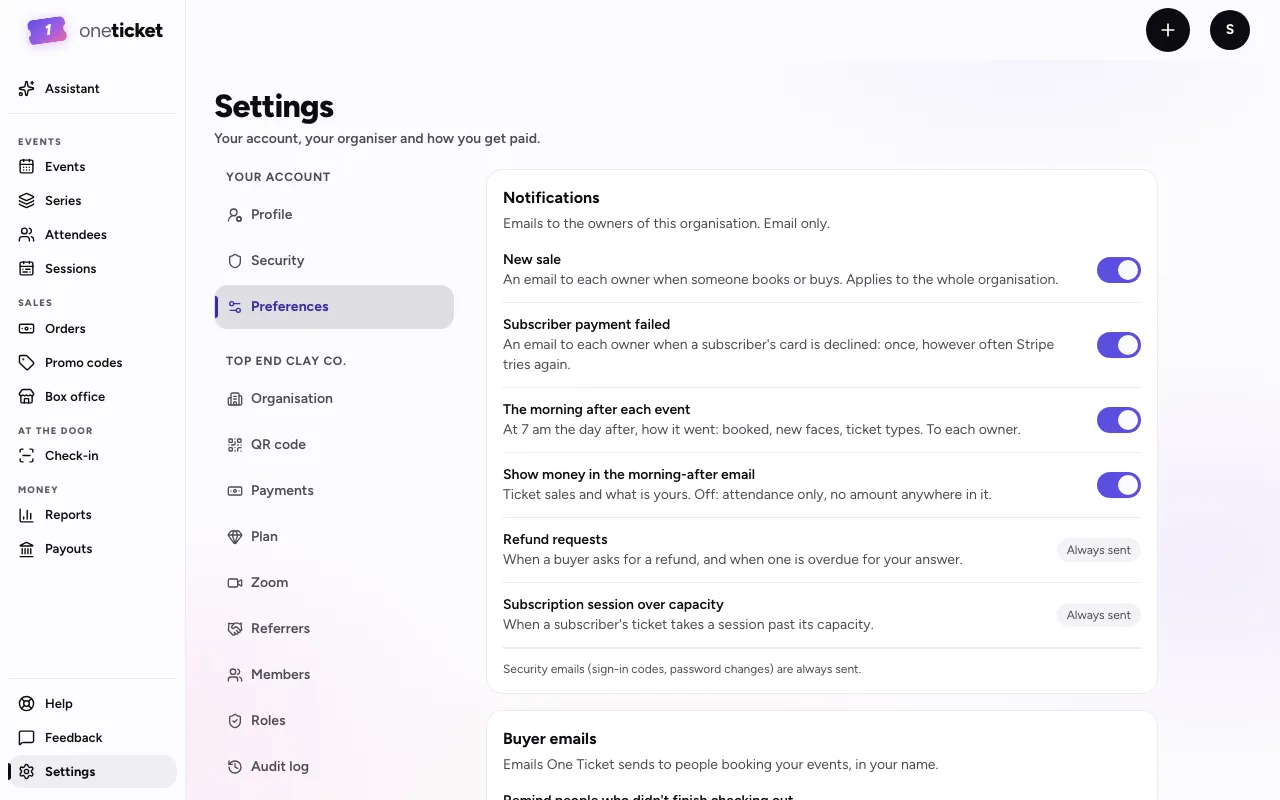
Notifications (to your organiser's owners)
- New sale: an email to each owner when someone books or buys.
- Subscriber payment failed: an email to each owner when a subscriber's card is declined. You get it once for that failed payment, however often Stripe tries the card again. It's on to begin with. It says who, which series, the plan and amount; new tickets wait until a payment goes through, and you don't need to do anything.
- The morning after each event: how it went, at 7 am the next day, on every plan. See The morning-after summary.
- Show money in the morning-after email: switch off for attendance only.
- Replay reminders: when a session people are waiting on a replay of ends with no recording link, an email about an hour after it ends, with a button straight to where the link goes, and once more a day later if they paid for it (or, for a replay you send yourself, a day later as a reminder to send it). Several sessions at once come in one email. It's on to begin with. See Replays.
- Refund requests and Subscription session over capacity: always sent.
Security emails, such as sign-in codes and password changes, are always sent. So is the email telling owners that their own Pro or Team plan payment didn't go through: see Your plan.
Buyer emails (sent in your name)
- Remind people who didn't finish checking out. See Checkout reminders.
- Email ticket holders as an online event starts: "Starting in 15 minutes", with their join link or Watch button, once per ticket. It's on to begin with. An event whose join link is held back until shortly before always sends it, as that's how its ticket holders get the link. See Online events.
Tickets, receipts, refunds and changes to an event are always sent.
Only an owner or admin can change these.
Appearance
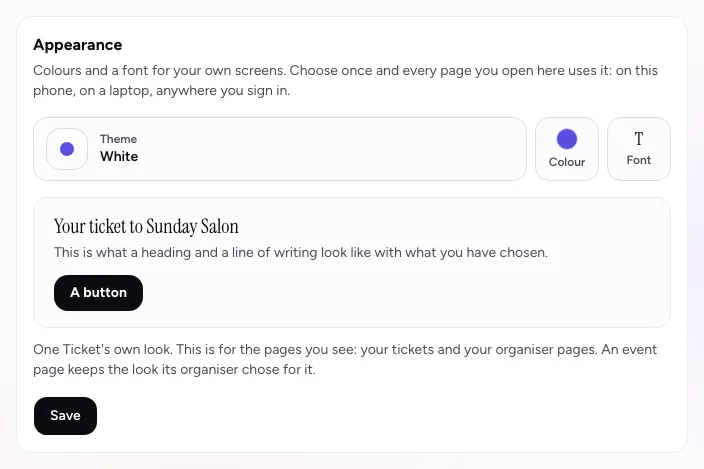
The colours and title font of your own screens: My tickets and your organiser pages, on every device you sign in on. It's yours alone: your team and your buyers keep their own, and an event's page keeps the look its organiser chose for it.
- Under Appearance, choose Theme (Light, White, Dark or Gradient), Colour (one of ten, or any colour: pick one or type its code) and Font (for page titles only; everything else keeps the site font). Each choice shows at once, on the page you're on.
- Choose Save. Undo changes goes back to what you saved; Use One Ticket's look goes back to the standard look, once you save.
Every colour is kept readable: if a colour you pick is too light for words on its buttons, the buttons use a deeper shade, and a note says so. Dark makes your screens dark, menus and pop-ups included.
Choose what's in your menu
Under Menu, each place in your menu is listed in its group, with a switch: Shown or Hidden. Choose Save, and a hidden place leaves the menu down the left and, on a phone, the menu and the bar along the bottom. Undo changes goes back to what you saved; Reset to default shows everything again.
- It's yours alone, in every organiser you're in: your team choose their own.
- A hidden page still opens from a link, and works as before.
- Events and Settings are Always shown: Events is where every event starts, and Settings is where you change this back.
- A place you don't have access to isn't listed, and stays out of your menu.
Still stuck? Contact support and a person will get back to you.