Team members and roles
Invite people to help run your organiser, and choose what each can do.
Invite someone
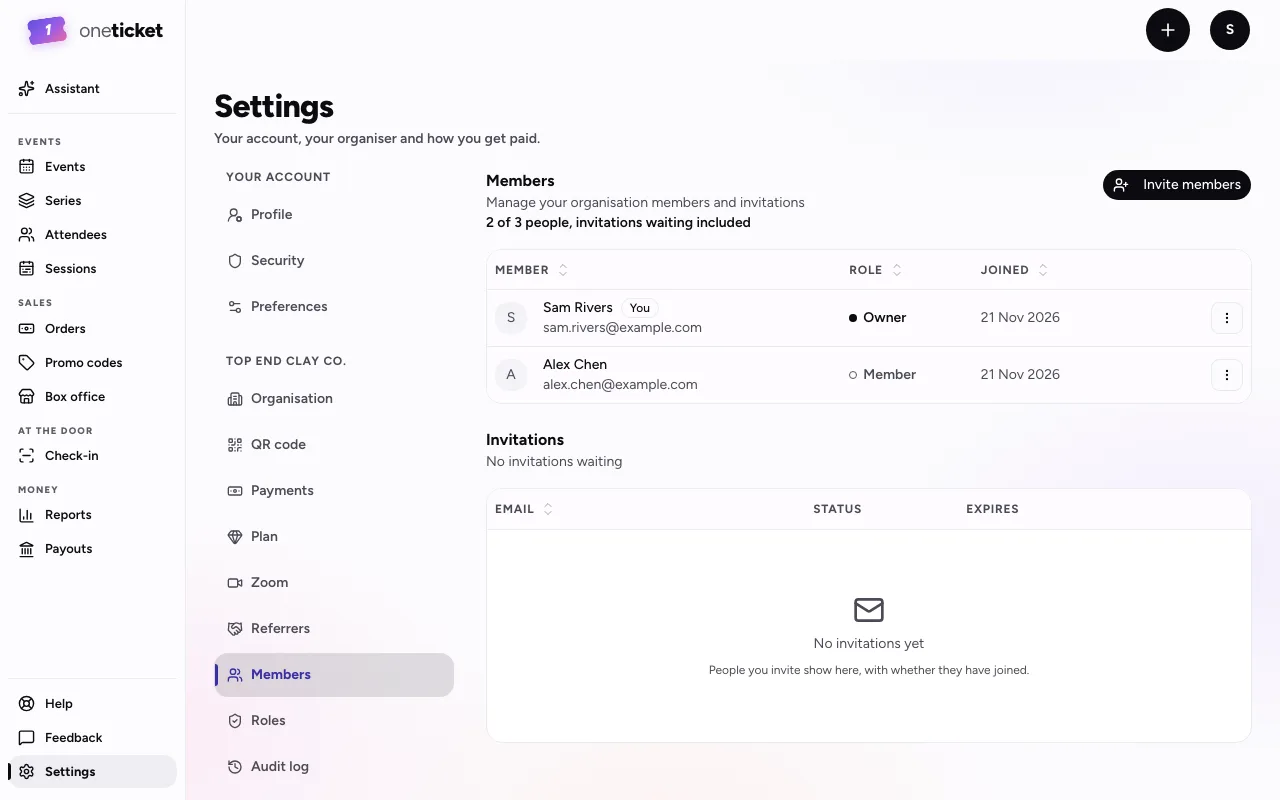
On Pro and Team, Members shows how many places are taken, like "2 of 3 people, invitations waiting included".
On Free there's no Invite members button: the page says "Inviting people is on Pro, up to 3 on your organiser, and Team, up to 10 with roles.", with See plans. Once Pro's 3 places are taken (waiting invitations count), it says "Your plan has room for 3 people, you included. Team has room for 10, with roles." On Team, once your organiser has room for 10, remove someone or cancel an invitation to invite another.
Only the Owner, and on Team an Admin, can invite. An Admin invites members.
- Go to Settings, then Members.
- Choose Invite members.
- Type their email. On Team, choose their role. On Pro, everyone joins as a Member: the dialog says what they can do.
- Choose Send invites.
They get an email with a link to join. Pending invitations show under Invitations, where you can Resend invitation or Cancel invitation.
Roles
- Owner: everything, including the plan, billing and payout settings.
- Admin: invites members, refunds and exports orders, messages ticket holders and changes most of the organiser's settings. Changing the plan, managing billing and changing payout settings stay with the Owner.
- Member: builds, publishes and edits events, sees orders, sells at the box office and checks people in at the door. Members can't invite anyone, refund, export orders or message ticket holders, and the organiser's settings are read-only for them: ask the Owner (or, on Team, an Admin).
What a role can see and do changes the app: someone who can't see money won't see Get paid, for example, and someone who can't change the refund policy sees it locked.
On Team, to change someone's role, open their menu (⋮) on Members and choose Update role. On Pro, everyone you invite is a member, and someone who was an admin on Team can only be changed to member. Remove from account takes them off the organiser.
Hand over the organiser
The Owner can make someone else the owner, such as when you're leaving the business.
- On Members, open their menu (⋮) and choose Make owner.
- Check what happens, then choose Email me a code.
- Type the 6-digit code we emailed you (it works for 10 minutes) and confirm.
They become the owner. You stay on as an admin (a member on Pro), and they can change that, or you can leave. Nothing else moves: events, orders, payouts and the plan stay with the organiser. Payouts keep going to the connected bank account until the new owner connects their own.
Leave the organiser
Open your own menu (⋮) on Members and choose Leave organisation. You lose access to its events and orders. If you're the only owner, you can't leave yet: make someone else the owner first. Done with the organiser altogether? See Delete or close an organiser.
Moving down a plan
Nobody is removed when your plan moves down, from Team to Pro or from Pro to Free: everyone already on your organiser stays, with the role they had. You can't invite anyone new, and a waiting invitation can't be accepted, until you're back within the plan's places: Members says so. Remove someone or cancel an invitation to make room. On Pro, someone invited as an admin on Team joins as a member, and a resent invitation goes out as a member's.
Still stuck? Contact support and a person will get back to you.