Edit a series
Change the time, place, prices, ticket types, questions, refund policy, words, cover or a premiere's countdown video of many sessions at once.
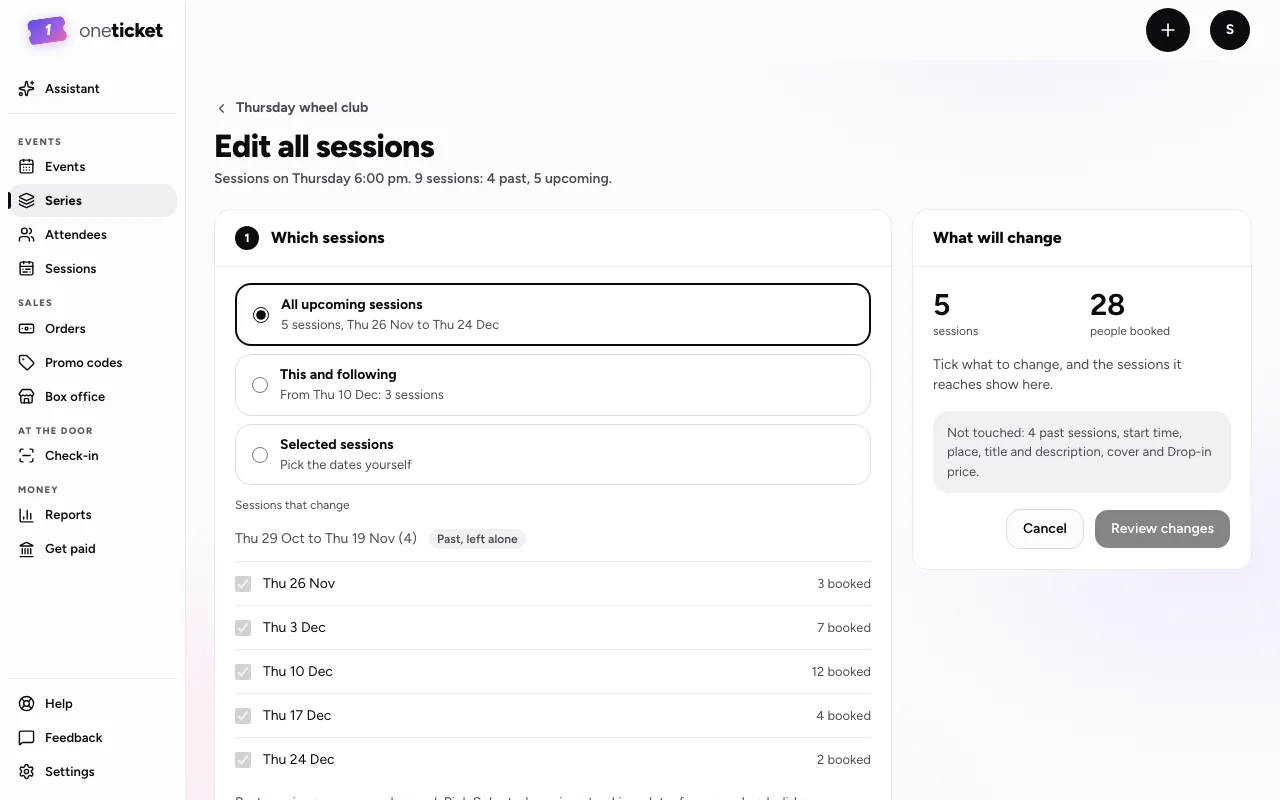
Edit all sessions changes upcoming sessions of a series together. Past sessions are never changed.
Edit sessions
- Open the series page (see Series) and choose Edit all sessions.
- A series with several schedules asks first, under Sessions: Every schedule, or one schedule. With Every schedule, each schedule keeps its own start time and place (pick one schedule to change those too); one schedule's sessions can change everything.
- Under Which sessions, choose:
- All upcoming sessions,
- This and following: pick the session to start from, or
- Selected sessions: tick the dates yourself. Use this to skip a date, such as a public holiday.
- Under What to change, tick what you want to change:
- Start time: same day each week. To move to another weekday, make a new series. A premiere ends when its video does. A premiere already under way (its room has opened) keeps its time. A series playing several times a day (start times or timed slots) keeps each showing's own time, so the box can't be ticked: change a showing's time on its own page. Moving a premiere needs the Pro or Team plan.
- Premiere settings (a premiere series): the Countdown video, Open the room, Let people join late, Your team watching along and Message when it ends, as in a premiere's editor. Each starts as the sessions have it. Where they differ, the field says Now: different on each session, and leaving it blank or on Keep each session's own keeps each one's own; Take the countdown video off every session removes it from them all. The countdown takes the same YouTube video links as the editor. The sessions you pick use the new settings from then on, as do the sessions added each night after them. Nobody is emailed. You can also get here from the series page's Videos card: Change it for every showing opens this page with Premiere settings ticked.
- Place: the venue name and address. Online sessions keep their link.
- Ticket price: by ticket type. New sales only; paid orders keep what they paid.
- Ticket types: rename a type, set its places, remove it, or Add a ticket type. A type is the same on each session when it has the same name (capital letters don't matter). A type that has sold is only removed from sessions where nobody has bought one, and places can't go below what has sold.
- Questions: reword a question, change its answer type or choices, stop asking it, or Add a question. A question is the same on each session when it has the same wording. It's for bookings from now: answers people already gave stay on their tickets, as they were asked. With referrers, Add referrer question adds the referrer question to every session. For a premiere, set When to ask and, for a question during the webinar, its Time into the video.
- Refund policy: the refunds buyers can ask for, and Your refund policy, the words buyers read under it. These start as the refund policy generator's words for your choice; change them as you like. If some sessions have their own words, choose Replace it with this one or Keep their own. Only owners and admins can change the refund policy, as on a single event.
- Tickets per order: the most tickets one order can have, from 1 to 25. Leave it blank for no limit of its own (25 is the most any order can have).
- Title and description.
- Cover image: use one session's cover for them all.
- When ticket holders see the join link (once a session is online): under Ticket holders see the link, choose As soon as they book or a time before the start. Held back, we email the link 15 minutes before each start. See Online events.
- The What will change panel shows how many sessions and people it reaches, and any session that will be skipped and why. Choose Review changes.
- Check the summary and choose Update N sessions (or Update N sessions and email N buyers).
- If any session was skipped, you'll see Changed N sessions; N skipped with the reason for each. Choose Back to the series. You can change a skipped session on its own from its page.
Pay what you want and add-ons are set in each session's own editor. A replay-only ticket is set in each session's Replay panel, never here: see Replays.
Who is told
If the time or place changes, everyone booked on those sessions is emailed the new details. Their tickets and QR codes stay the same (for a premiere, their tickets and watch links), and buyers who paid online can ask for a full refund, the same as when you change one event. A price change never charges or refunds anyone. A premiere's countdown video and room settings email nobody.
When a session is skipped
Each session is saved on its own. A session is skipped, and nothing on it changes, when:
- a ticket type you removed has sold on it, has places offered to someone on its waitlist, or has places reserved for subscribers,
- the new places for a type are fewer than it has sold or holds,
- two of its ticket types or questions share the name you changed,
- it already has another ticket type or question with the new name,
- it's on sale and would have no ticket type left, or would be missing what publishing needs,
- someone else saved it, or was booking it, while the edit ran.
The series' latest session on sale is saved first, so new sessions added each night follow your change. A long series is saved in a few steps; if something stops it partway, you'll see Saved N of N sessions and which ones were changed. Close it and try again: sessions already changed are already as you asked.
If a session was saved by someone else after you opened the page, nothing is changed: reload the page and try again.
Still stuck? Contact support and a person will get back to you.