Publish an event
Put an event on sale, take it off sale, and what happens to changes once it's live.
A new event is a draft: only you and your team can see it. Publishing puts it on sale.
Publish
- Open the event in the editor.
- Check the line at the bottom. When it says "Ready to publish", everything publishing needs is there.
- Choose Publish.
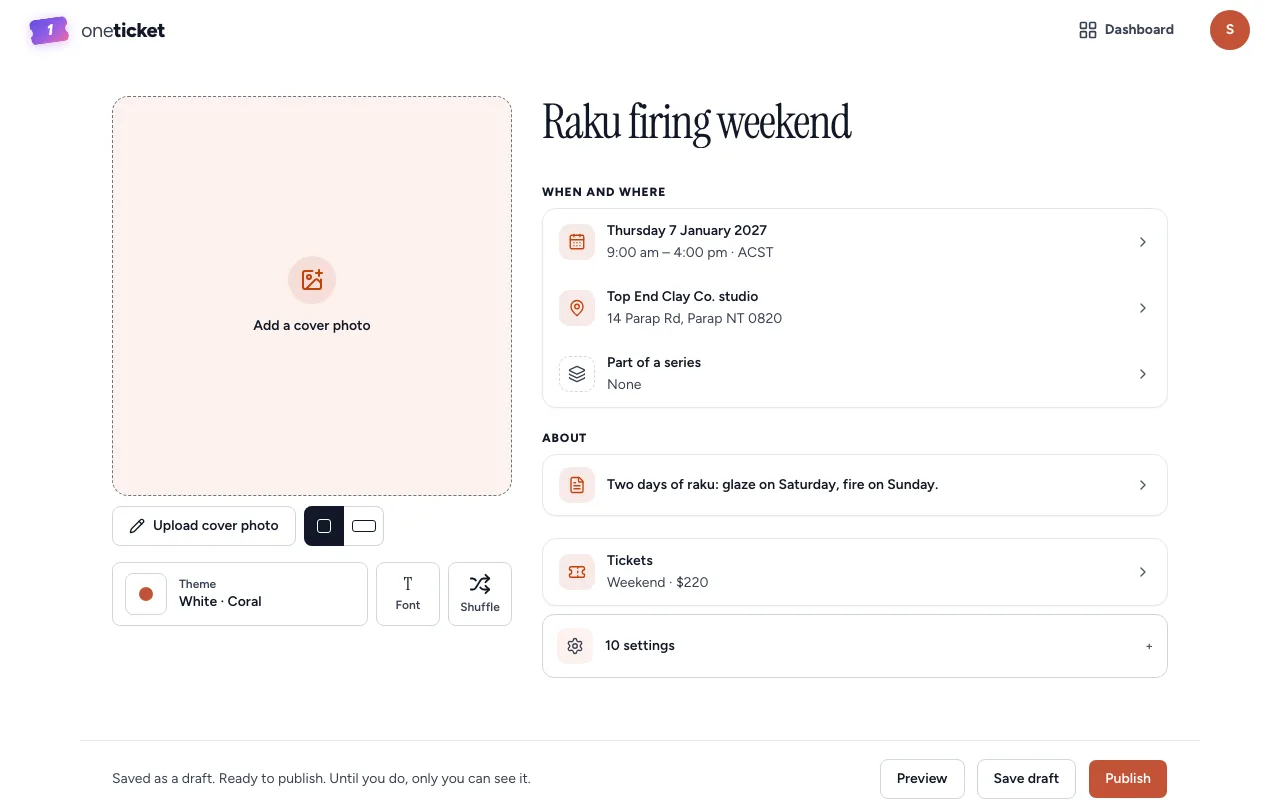
The event is live: its page opens to everyone you share it with, and public events show on your organiser page. You can also publish a draft from the Events list: open its menu (⋮) and choose Publish.
If something is missing, a banner says what, for example "Still needed before publishing: a date." See Create an event for the list.
Under review
One Ticket checks every page as it's published, and again each time a live one is saved, for the signs of spam and scams: a page selling crypto, a casino listing, or one pretending to be a bank. A page that looks like one is hidden for One Ticket to check. Instead of "Event is live", the editor says "Under review by One Ticket. Your page shows once it has been checked." and the event shows Under review.
While it's under review the page shows as unavailable and your organiser sends no emails. Nothing is deleted, and you don't need to do anything: if it's a real event, it's put back as it was. To ask about it, contact support. Ordinary events, with a WhatsApp group, a gold coin donation or a bring-a-plate, are never held.
Changes to a live event
On a published event the editor says "Published. Changes go live when you save." Make your changes and choose Save.
If you change the date, time or place and people are booked, One Ticket asks first. See Change the date or place.
Unpublish
- Open the event in the editor and choose Unpublish.
- Choose Unpublish to confirm.
The page goes back to a draft, so nobody new can book. Tickets already sold stay valid. You can publish it again any time.
Still stuck? Contact support and a person will get back to you.