Questions at checkout
Ask each ticket holder something, such as dietary needs or a T-shirt size.
Questions are asked once per ticket at checkout, or after booking if they can wait. The answers come out with the orders.
Add a question
- In the editor, choose 10 settings, then Questions.
- Choose Add question.
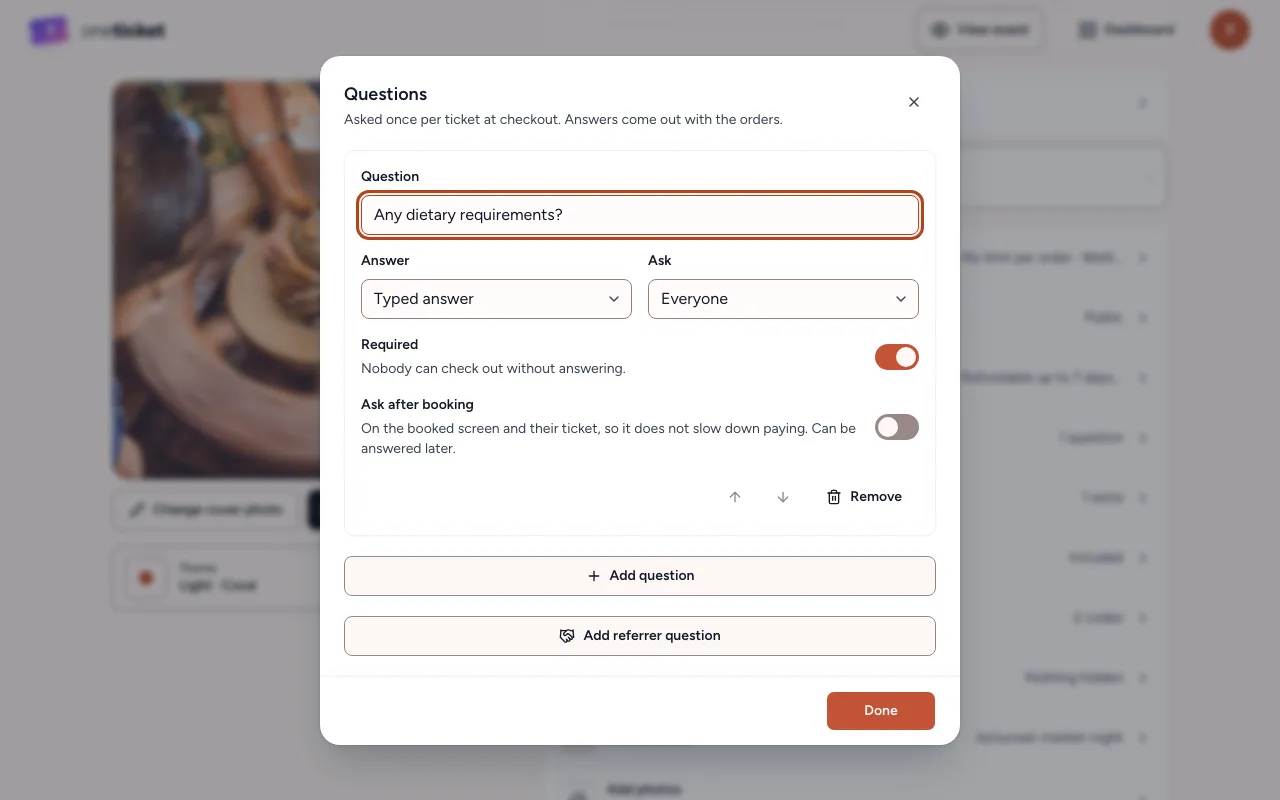
- Type the Question, for example "Any dietary requirements?"
- Choose the Answer type:
- Typed answer: a free-text box.
- Pick from a list: a dropdown. Type the Choices, one per line.
- Tick boxes: tick one or more. Type the Choices, one per line.
- Under Ask, choose Everyone or one ticket type.
- Switch on Required if everyone must answer, or Ask after booking if it can wait (see below). For a premiere, choose under When to ask instead: At booking (where Required can be switched on), After booking or During the webinar.
- Use Move up and Move down to order them, then choose Done, then Save in the editor.
Asking after booking
Every question before paying is a reason to give up. Anything you don't need to sell the ticket, such as dietary needs, a T-shirt size or how they heard about you, can wait until they are booked.
- Switch on Ask after booking. It switches Required off: a question asked later can always be skipped.
- Buyers see it on the You're in! screen straight after booking, and answer once for everyone on the booking. A guest who already has an answer keeps theirs.
- It stays on each ticket's page, where every ticket holder can answer or change their own answer for as long as the ticket is valid.
- The answers go in the same place as the ones asked at checkout.
Questions during a premiere
A premiere's question can also pop up in the watch room at a time into the video, with an optional right answer for a quiz. Choose During the webinar under When to ask: see Premieres.
Who referred them
If you have referrers, Add referrer question asks buyers to choose one of them, or No one. An event asks one. A referrer's own link picks them in it. See Referrers.
Seeing the answers
- Open an order: each ticket's Answers are in the tickets table.
- On Attendees, open a person's menu and choose View details.
- Export CSV on Orders includes them.
Still stuck? Contact support and a person will get back to you.