The Assistant
Let AI do the hard work: draft an event from a sentence or a flyer, ask about your sales, and get descriptions and replies written.
The Assistant is AI that does the hard work for you. Describe an event in a sentence, or give it your flyer, and it drafts the event. It also answers questions about your sales and writes descriptions and replies. It suggests; you decide what's saved. Nothing is saved until you say so, it never publishes an event, and it never sends anything.
Open it
Choose Assistant at the top of the menu on the left. Type a message, or choose one of the examples.
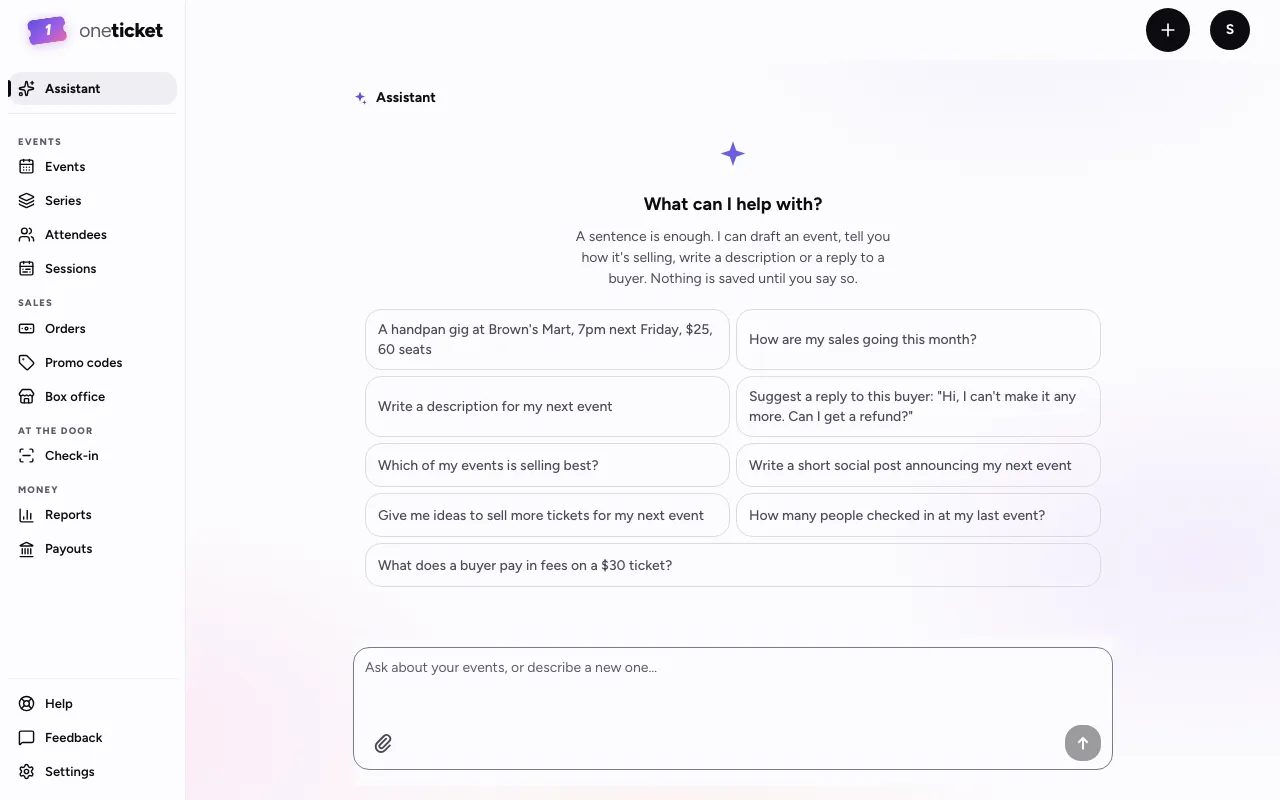
What you can ask
- Draft an event from a sentence: "A handpan gig at Brown's Mart, 7pm next Friday, $25, 60 seats". It shows an Event draft with the title, when, where, tickets and description, and what it assumed (Assumed: …. Check before you publish.). If something is missing, such as a date or the venue, it says Still needs it. Choose Create draft, then Open in the editor to check it and publish. It's saved as a draft: nothing goes on sale until you publish it yourself.
- Draft an event that repeats: "Yoga at the Hall every Saturday 9am for 8 weeks, $20". The draft shows the first date and a Repeats line ("weekly on Saturday, 8 times"), and says if it assumed an end. Create draft then makes a draft series, one draft session a date. It can repeat daily, every weekday, weekly on chosen days, fortnightly or monthly (same week and day), for up to 26 sessions, until a date, or with no end. See repeating events.
- Draft an event from a flyer: choose the paperclip to attach an image or a PDF of the flyer and it reads the event from it. A PDF can be up to 2 pages: attach just the page with the event on it. A smaller file or a photo works best.
- How sales are going: "How are my sales going this month?"
- A description: "Write a description for my next event". Choose Use this, then Replace description, to save it on the event.
- A reply to a buyer: paste their message and ask for a reply. Choose Copy and paste it into your email. Check it before sending.
Messages each month
| Plan | Messages a month |
|---|---|
| Free | 10 |
| Pro | 100 |
| Team | 300 |
They start again on the 1st of each month. The Assistant doesn't count down as you go: the organiser's Owner and Admins see how many are used in Settings, then Plan, under Assistant messages (members can't open Plan). On any plan, your organiser can send up to 20 a day; more the next day. A message that fails with an error isn't counted. When they and any extra messages are all used, a card takes the message box's place, You're out of Assistant messages, and says when they start again. Your events, tickets and orders aren't affected.
Extra messages
You can buy more messages, on any plan: 10 for A$1, from 10 to 5,000 at a time. Prices include GST. If your organiser sells in US dollars or pounds, it's US$1 or £1 for 10.
- When the month's messages and any extra ones are all used, the Owner chooses Buy messages on the Assistant's card (anyone else is told to ask the Owner). It takes you to Settings, then Plan, Extra messages, where you can also buy them any time.
- Type how many you want; the total shows as you type. Choose Buy and pay on Stripe's secure page.
- You come straight back to where you started, which says extra messages added. It can take a few seconds.
Extra messages never expire. They're used only once the month's messages are gone, and the 20 a day still applies. The Owner and Admins see your Balance under Extra messages in Settings, then Plan. A message that fails with an error isn't counted. Only the organiser's Owner can buy messages; they're shared by everyone on the organiser. Messages bought on the old site carried over.
Still stuck? Contact support and a person will get back to you.