Sign-in and security
Set or change an optional password, turn on two-step sign-in with an authenticator app, and keep backup codes. Emailed sign-in codes always work.
You can always sign in with a code we email you. These settings are under Settings, Security.
Change your email
Your sign-in email is changed on Settings, Profile, whether or not you have a password. See Your profile.
Set or change a password
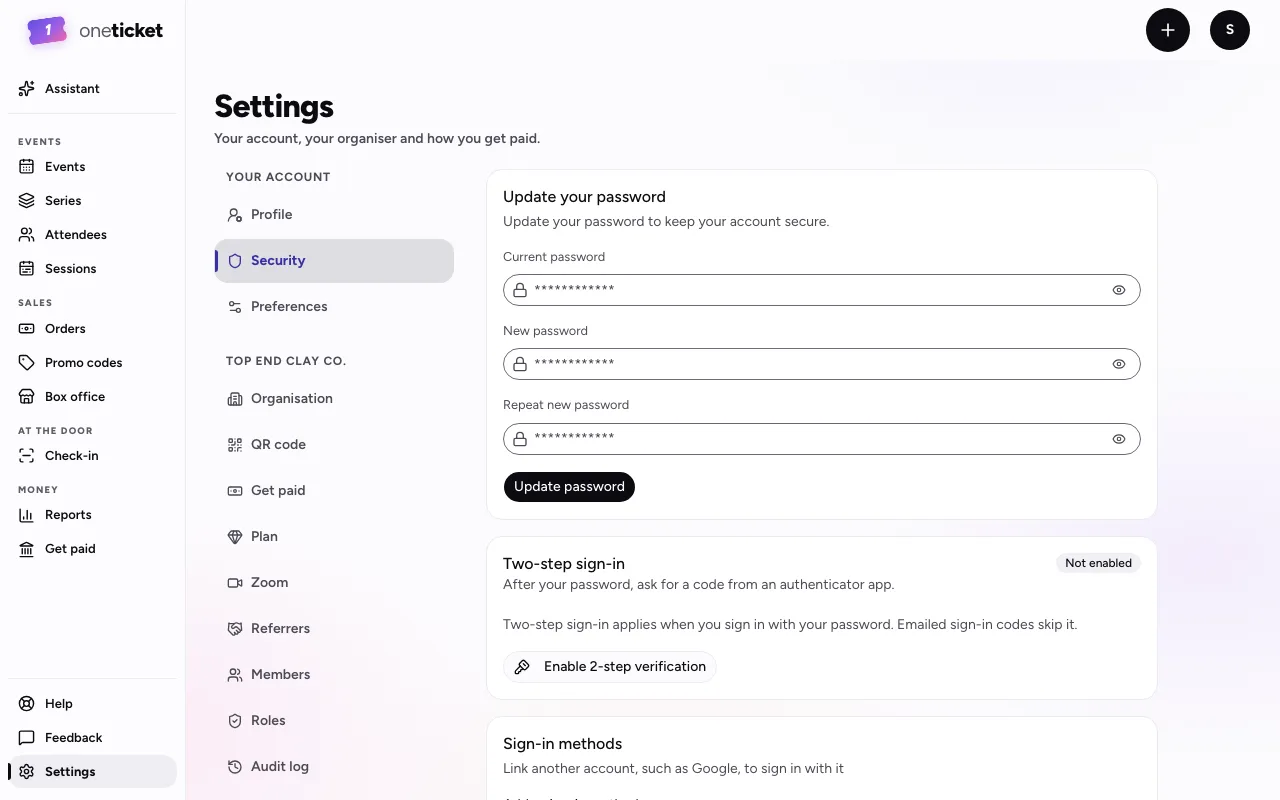
A password is optional: emailed codes always work. To set your first one, use Sign in with a password on Security: type it twice and choose Set password (Set a password under Two-step sign-in does the same). Once you have one, change it under Update your password: type your current password and the new one twice, then choose Update password.
Two-step sign-in
Two-step sign-in asks for a code from an authenticator app (such as Google Authenticator, Authy or 1Password) after your password.
- Under Two-step sign-in, choose Enable 2-step verification. (If you've only ever signed in with emailed codes, choose Set a password first.)
- Enter your password and choose Continue.
- Scan the QR code with your authenticator app, or enter the code shown, and choose Continue.
- Type the 6-digit code from the app and choose Verify & enable.
- Save your Backup codes somewhere safe: choose Copy codes or Download codes. They're shown only once, and get you in if you lose your phone.
When you sign in with your password, you can tick Trust this device for 60 days so it doesn't ask again on that device. Emailed sign-in codes skip two-step sign-in.
To turn it off, choose Turn off two-step sign-in and enter your password.
Still stuck? Contact support and a person will get back to you.