The event editor
Your cover photo, colours and title font, and the settings folded under the event.
The editor is laid out like your event page: the cover and the look on the left, what the event is on the right, and the settings folded underneath.
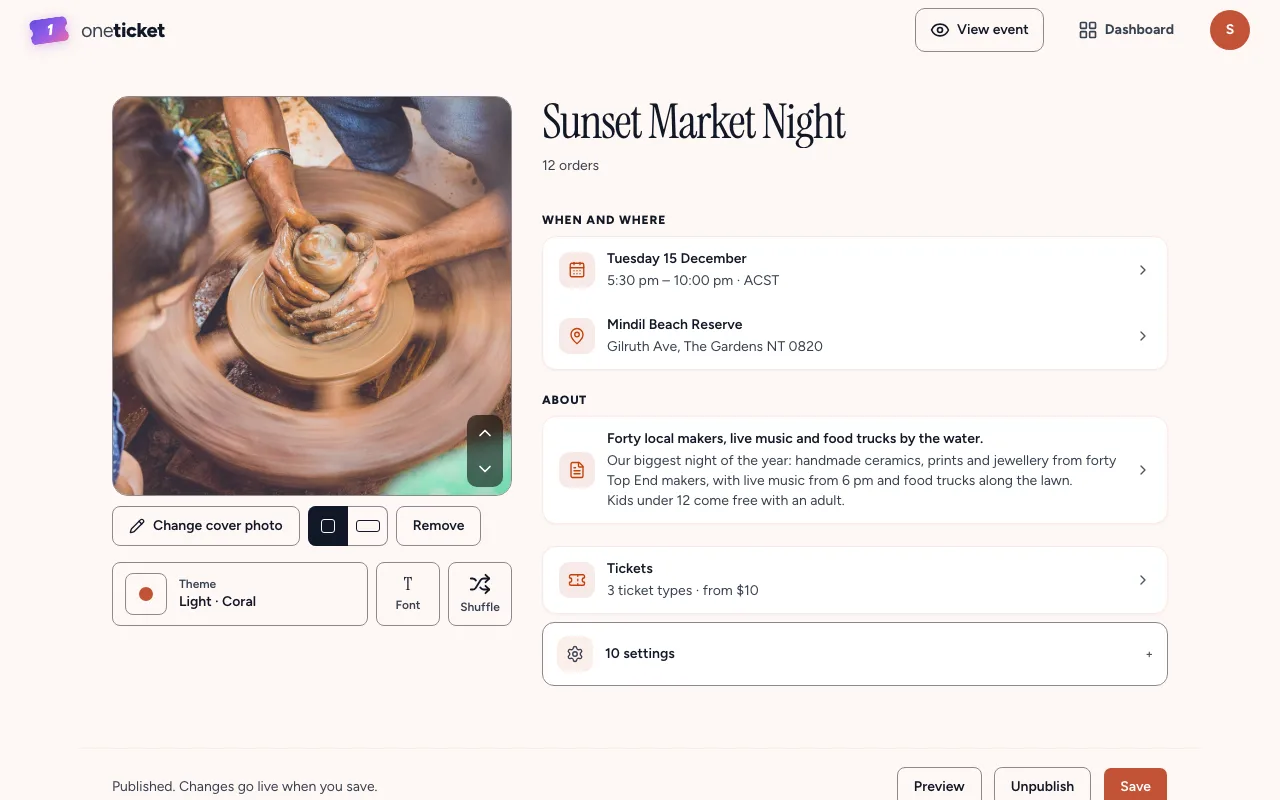
Cover photo
- Choose Upload cover photo (or click the cover itself).
- Pick a PNG, JPEG, WebP or GIF image. A large photo is resized to fit, and the editor tells you if it can't be.
- Choose Save at the bottom of the editor to keep it.
No photo? The cover draws itself from your title and colours, so the page never looks empty. To take a photo off, choose Remove.
Theme, colour and font
Under the cover:
- Theme: the page's background. Light, White, Dark or Gradient.
- Colour: the accent for buttons and links. Pick one of ten, or Pick any colour and type a hex code. Buttons use a deeper shade so their text stays readable.
- Font: the face for your event's titles. Everything else keeps the site's font.
- Shuffle: tries a new colour, theme and font together.
The rows
Each row opens a panel. Make your change and choose Save (or Done) in the panel; the change is kept in the editor until you save the event.
- When and where: the date and time, and the place. See Online events and Repeating events.
- About: the one line and the description. Select words in the description and a toolbar appears to format them: H1 and H2 for headings, B, I and U, a link, a bulleted list and a quote. On a keyboard, select with Shift and the arrow keys, then press Tab to reach the toolbar; Ctrl+B, Ctrl+I and Ctrl+U work as usual (⌘ on a Mac), and Ctrl+K adds a link. Pasted text comes in as plain words.
- Tickets: see Tickets and prices.
The settings
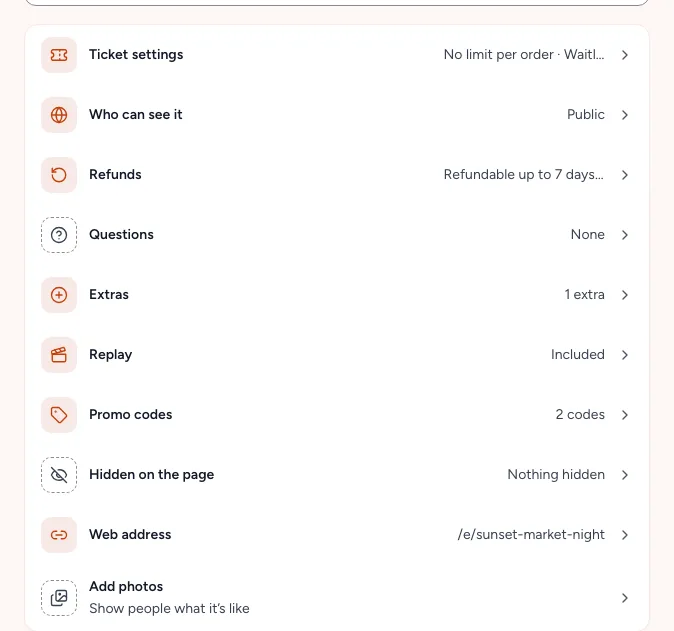
Choose 10 settings to unfold the rest:
- Ticket settings: the most tickets per order, the button's words, the waitlist, and No tickets needed.
- Who can see it: Public, Unlisted or Private (Private adds a Password). See Who can see your event.
- Refunds: your refund policy. See Your refund policy.
- Questions: things to ask each ticket holder. See Questions at checkout.
- Extras: add-ons sold with tickets. See Extras.
- Replay: send ticket holders the recording, or sell it. See Replays.
- Promo codes: see Promo codes.
- Hidden on the page: things the page shows unless you turn them off.
- Web address: the end of your event's link. See Who can see your event.
- Photos (Add photos until you add one): more photos for the event page.
Part of a series is under When and where, once you have a series. See Add an event to a series.
Hidden on the page
Each of these is shown unless you switch it off:
- Hide how many tickets are remaining: buyers won't see "Only 3 left".
- No QR code on tickets: for events you won't scan. The door tools still find people by name or code.
- Hide the discount code box: codes you've shared keep working.
- Hide organiser link: takes your name off the event page.
- Hide the series name: for a session of a series.
- Keep it off my public profile: no card on your organiser page. The link still works.
Saving
Changes aren't live until you choose Save (or Save draft on a draft). If you leave with unsaved changes, the editor asks first. If your browser closes, it keeps a copy and offers to Pick it back up next time.
Still stuck? Contact support and a person will get back to you.