Subscriptions for a series
Let people pay weekly, monthly or yearly for every session, and get each ticket automatically.
A subscription is a standing ticket to every session of a series, billed on a cycle instead of buying week to week. Each subscriber gets the next session's ticket made for them before it runs.
A subscriber pays for their first period when they subscribe, and that payment always covers their first session. If the series hasn't started yet (or the next week has no session), their next payment moves to after it, so nobody pays for a week with nothing on.
Turn on subscriptions
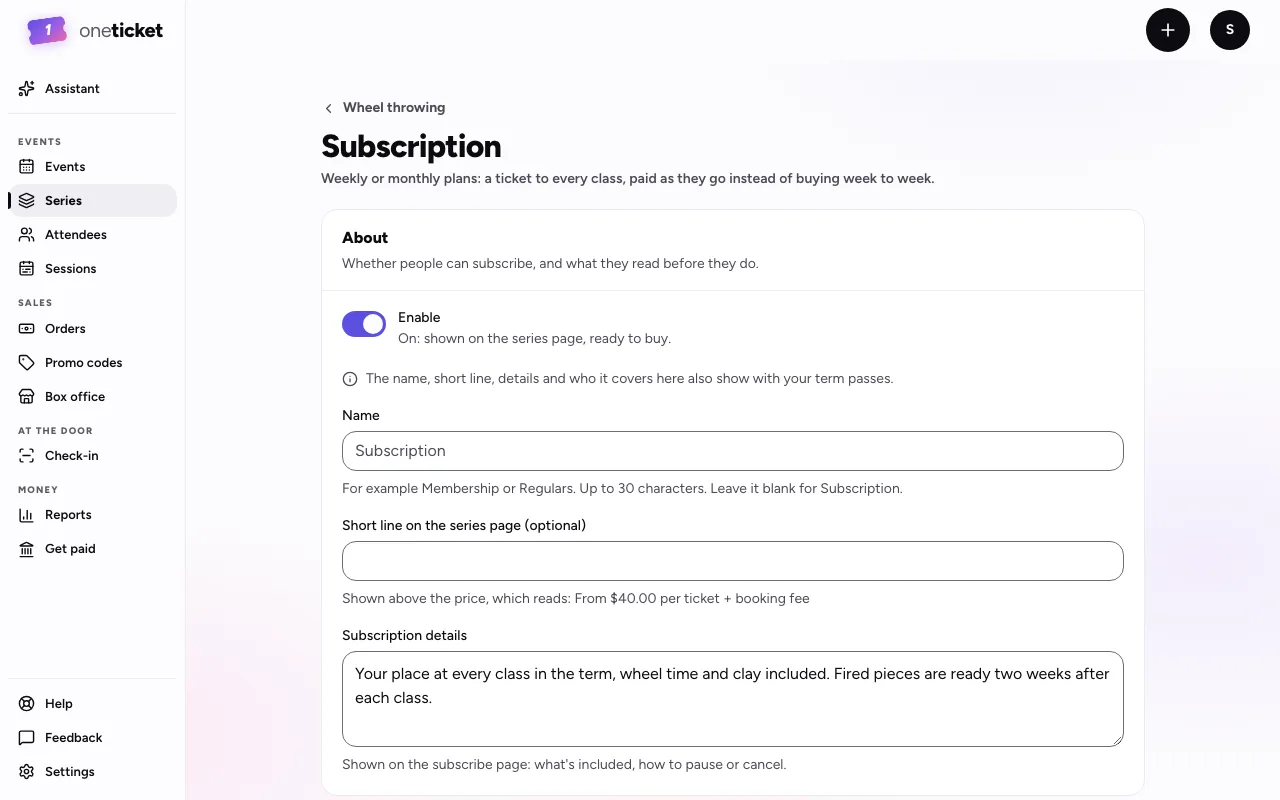
- Open the series page and choose Set up subscription (or Edit subscription once it's set up) on its Subscription card. The setup has a page of its own.
- Under About, switch on Enable. It says "On: shown on the series page, ready to buy" (on a draft series, once you publish it). Off, it's not offered on the series page, and people who already have it keep it until they or you cancel.
- Optionally, under it, give it a Name: what your buyers know it as, such as Term pass or Membership (up to 30 characters). It says what buyers will read ("Term pass" and "Get your term pass"). Leave it blank for Subscription.
- Optionally write a Short line on the series page shown above the price.
- Write the Subscription details: what's included and how to pause or cancel.
- Under Who it covers, set each option's Label and Seats: how many tickets each gets a session. A couple is 2. Add more with Add a who option.
- Under Pricing, Billing options, set each option's Label, Price a ticket and How often: every week, 2 weeks, 4 weeks, month, 3 months, 6 months or year. Add more with Add a billing option. Prices are per person each billing period, so a couple pays twice.
- Optionally switch on Custom subscription pricing to set your own price for each combination of who, billing and place: a table for each who option, a row for each billing option and a column for each place. It also shows the Attendance options: the places subscribers choose from, made from the series' sessions (a venue, and Online only when any session is online). You can change the words buyers see. While the series is hybrid or has hybrid events to come, Online only isn't offered: it shows greyed out, and anyone who chose it before keeps their plan.
- Term passes aren't set up here: they're sold from their own card on the series page (see Term passes). The name, short line, details and who it covers here also show with your term passes.
- Under Replays, check what each plan charges to add the recordings. Choose Set up in Replays → to change them. See Replays.
- Optionally add a Dropdown at checkout, such as "Who's your group leader?"
- Choose Save subscription. You're taken back to the series page, where the Subscription card shows whether it's on and the price buyers read. On a live series, the setup page also has Preview subscription page (it opens in a new tab) to see it as buyers do.
The series page then shows Subscribe (or, with a name, "Get your term pass"). If the series is still a draft, it shows once you publish the series.
With a name, buyers see it everywhere for this series: the series and subscribe pages, the manage page, My tickets, their tickets and every subscription email, and on Stripe's checkout. Lists across all your series, such as Orders, Reports and Settings, still say Subscriptions.
Buyers see the lowest price a ticket works out at across your billing options (a month counts as 4 weeks), such as "From $4.88 per ticket + booking fee", with "Couple option available" when a plan covers more than one person. Each option on the subscribe page says roughly what a ticket costs on it ("about $4.88 a ticket").
A series with only term passes and no name is called a term pass on its pages ("Get a term pass").
A premiere played several times a day, or one with a new video each week at several showings, can't take subscriptions: the series page's Subscription card says "Not offered for this series", as a subscriber would get a ticket to every showing.
Your subscribers
See who subscribes on the Subscriptions tab of Orders. From there you can pause, resume, cancel, correct a name or email, email someone their next ticket, or delete a subscription. See Subscribers.
When a subscriber's payment fails
The subscriber shows as Past due and new tickets wait until a payment goes through. Each owner gets one email, "A subscriber's payment didn't go through", however many times Stripe retries. You can switch it off under Settings, Preferences. See Subscribers.
What subscribers can do
Subscribers manage their own plan from the link we email them, or from My subscriptions: pause, resume, update their card, cancel, or Change plan to another of your billing options, a different number of people, or another place. A change is priced with your own prices. See Manage a subscription.
Still stuck? Contact support and a person will get back to you.