Online events
Sell tickets to a Zoom, Meet or Teams event. The join link goes out with each ticket.
For an event on Zoom, Google Meet, Microsoft Teams or another meeting service, sell tickets as usual and add the meeting link. Only ticket holders see it.
Set it up
- In the editor, choose Add a place (or the place row).
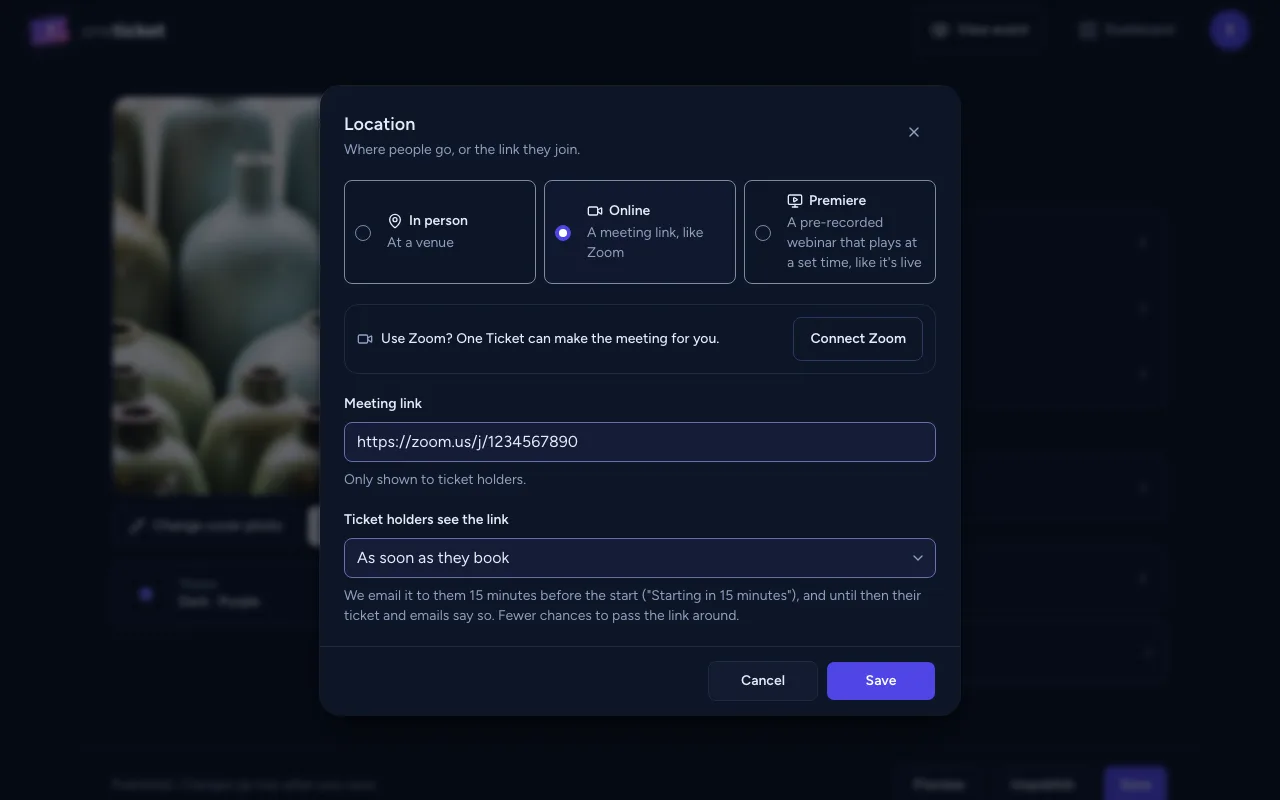
- Choose Online.
- Under How people join (once Zoom is connected), choose Paste a link. Paste the Meeting link. It's only shown to ticket holders: on their ticket and in their ticket email, never on the public page.
- Under Ticket holders see the link, choose As soon as they book or 15 minutes, 30 minutes or 1 hour before the start. Held back, the link is emailed to every ticket holder 15 minutes before the start (the "Starting in 15 minutes" email), and shows on their ticket at the time you chose. Until then, a note near the top of their ticket and in their emails says when it comes, such as "Your Zoom link arrives 15 minutes before the start" (or "Your join link appears here 1 hour before the start"), with that time in their own time zone. The "Starting in 15 minutes" email then opens with "Your Zoom link is here". Holding it back means fewer chances to pass the link around. It needs a start time: an event without one shows the link as soon as they book.
- Choose Save, then Save in the editor.
The event page says it's online, and that the meeting link arrives with the ticket.
Online sessions of a series
For a repeating event, Ticket holders see the link is one choice for the whole series: change it on one session and every online session of the series follows (the editor says "Every session of this series follows this choice."). To change it from the series page, choose Edit all sessions, tick When ticket holders see the join link and pick the time. See Edit a series.
Let One Ticket make the Zoom meeting (Pro and Team)
Instead of pasting a link, connect your own Zoom once in Settings, Zoom. Then, in an online event's place row, under How people join, choose Generate with Zoom and Meeting or Webinar: saving the event makes the meeting and puts its link on every ticket. A link an event already has is never replaced, except by Regenerate link, confirmed.
See Connect Zoom and make meetings automatically for making the Zoom app, connecting, repeating events, and what to do if Zoom says no.
For your ticket holders
- Tickets and emails add Add to Google Calendar, Outlook and a .ics file, with the join link in the entry once they're allowed to see it.
- When the viewer's time zone differs from the event's, the ticket shows Your time too, and emails link to Check your time.
- Everyone with a ticket gets a "Starting in 15 minutes" email with their join link (or Watch button). It's once per ticket and on for every plan; switch it off in Settings, Preferences, under Buyer emails. An event whose link is held back always sends it, switched off or not: it's how ticket holders get the link.
Good to know
- Online events aren't listed on Check-in: nothing needs scanning. Attendees shows who Opened the link, and for a premiere when each person joined and left and how long they watched; the event's report shows how many were still watching at each minute.
- While you're new to One Ticket, the meeting link must point to a known meeting or video site, such as zoom.us, meet.google.com, teams.microsoft.com or webex.com.
- To play a recording at a set time, like it's live, use a premiere instead (Pro and Team).
- To send ticket holders the recording afterwards, set up a replay.
Still stuck? Contact support and a person will get back to you.