Archive or delete an event
Tidy your list: archive an event with orders, or delete one nobody has booked. Not going ahead? Cancel it.
Archive
Archiving takes an event off your events list and keeps everything about it.
- On Events, open the event's menu (⋮) and choose Archive. Or choose Archive this event at the foot of the editor.
- If the event is on sale, One Ticket asks Archive and unpublish this event? Archiving also unpublishes it: ticket sales stop and its page shows as unavailable. Choose Archive and unpublish.
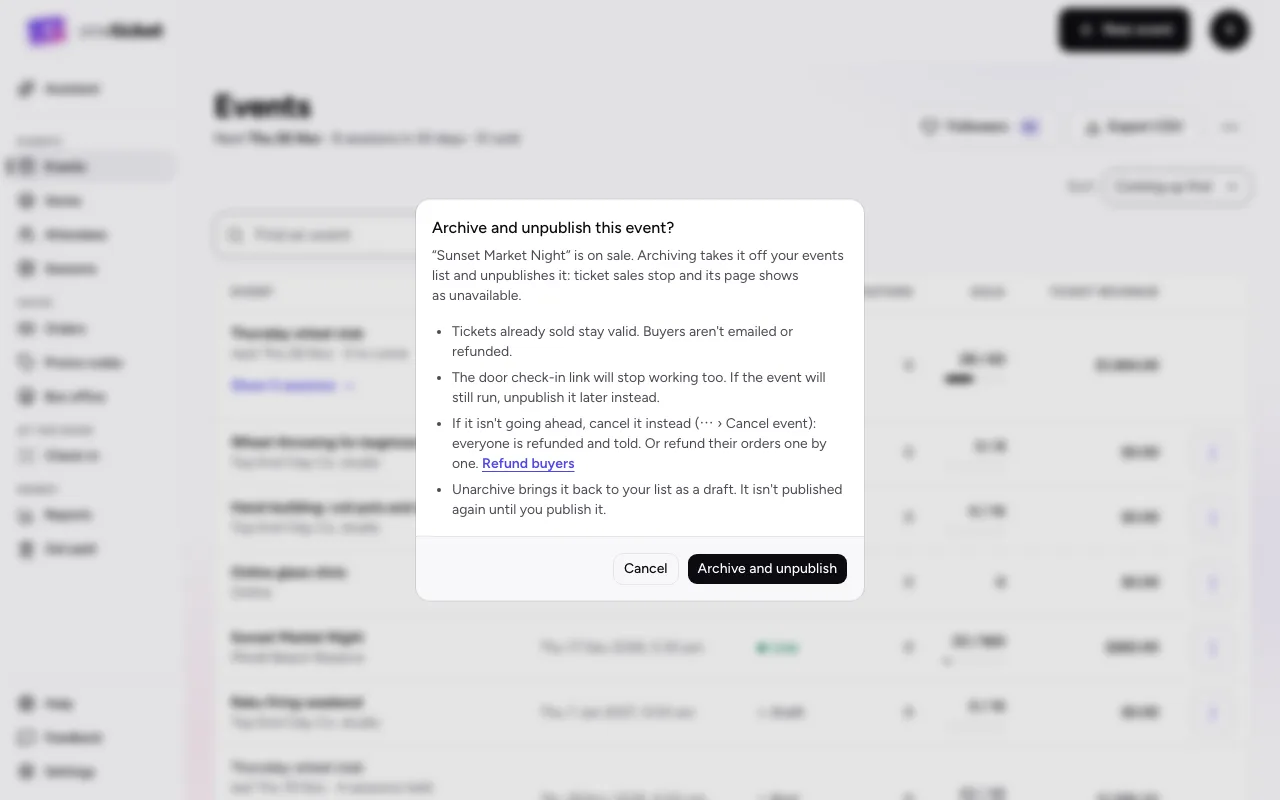
Tickets already sold stay valid. Buyers aren't emailed or refunded. If the event isn't going ahead, cancel it instead: everyone is refunded and told. Or refund their orders one by one. The door check-in link stops working too, so if the event will still run, unpublish it later instead.
To see archived events, choose Archived at the top right of Events (it appears once you've archived one; on a phone it's in the ⋯ menu). Open one's menu and choose Unarchive: it comes back as a draft, and isn't published again until you publish it.
Delete
You can only delete an event nobody has booked. One with orders says "This event has orders. Refund them, then archive it instead." If it isn't going ahead, cancel it.
- Open the event's menu (⋮) and choose Delete event, or choose Delete this event in the editor.
- Choose Delete to confirm.
The event and its ticket types are removed. This can't be undone. If it was published, its page shows as unavailable.
Delete several at once
- On Events, open the ⋯ menu at the top right and choose Select events. Each event gets a box.
- Tick the events to delete: press a row or its box. Select all ticks every event the list is showing (after any filter or search), and Clear unticks them.
- Choose Delete. One Ticket says how many will be deleted, and how many of those you ticked have orders and stay: those follow the same rule as above, so archive them instead.
- Choose Delete 3 events (or however many) to confirm, or Done to stop selecting.
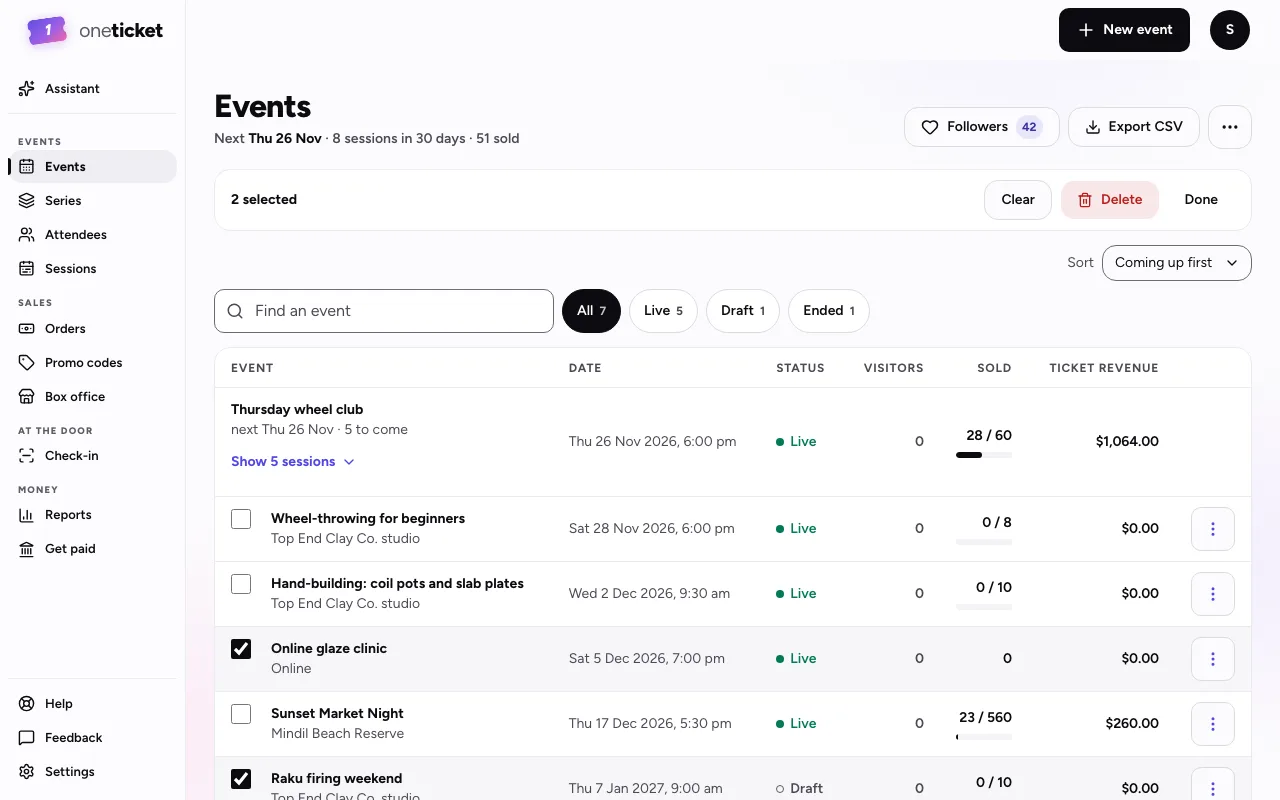
If someone books one of them while you're choosing, it isn't deleted: it comes back on the list and One Ticket says so. Only owners and admins can delete events.
Still stuck? Contact support and a person will get back to you.