Repeating events
Run a class, a club night or a market every week: a repeating event makes a series, with a session for each date.
An event that repeats becomes a series: one session for each date, each sold and checked in as an event of its own. The series has one page listing every session. You can also start an empty series from Series and add events and repeating schedules to it: see Series.
Make a repeating event
- Choose New event and fill in the name, place, about line and tickets as usual.
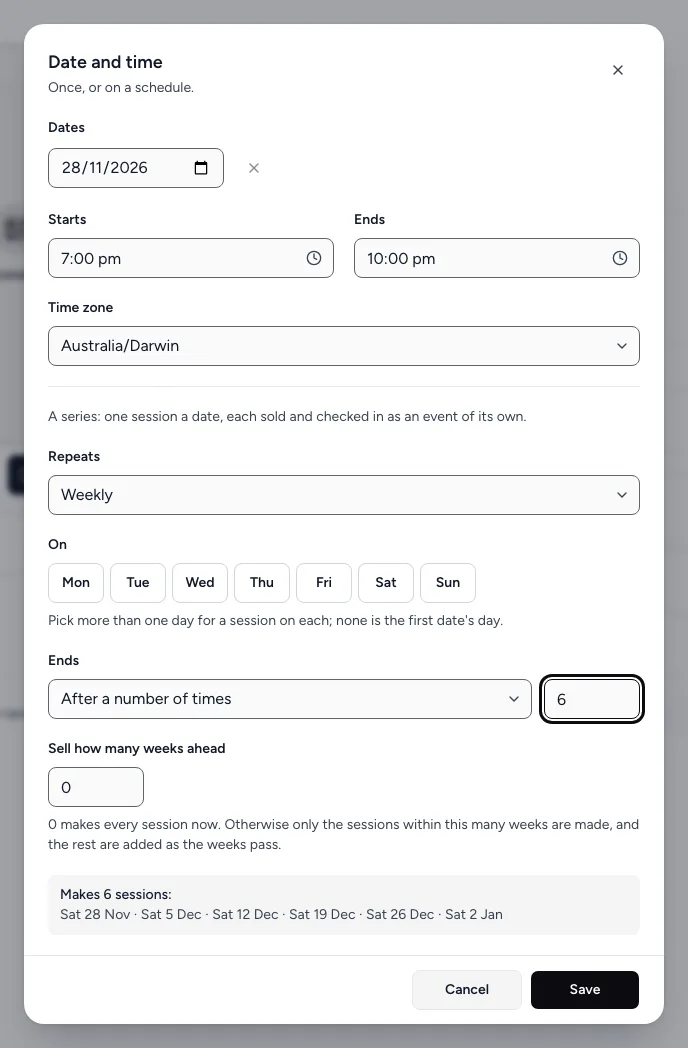
- Choose Pick a date. Set the first date and the times.
- Under Repeats, choose Daily, Every weekday (Mon–Fri), Weekly, Fortnightly or Monthly (same week and day).
- For weekly, choose the days under On. The first date's day is picked already; pick more for a session on each.
- Under Ends, choose After a number of times (and how many Times), On a date, or Never.
- Set Sell how many weeks ahead. 0 makes every session now (26 at most: with Never, or On a date after more than that, the series stops there). Otherwise only the sessions within that many weeks are made, and the rest are added as the weeks pass. You can change it later (see below).
- Check the list of dates under "Makes N sessions", then choose Save.
- Choose Publish (or Save draft).
A premiere that repeats can play a different video at each showing, and play at several times each day: see Premieres.
Make a saved draft repeat
A draft you have already saved can become a series too, including one the Assistant drafted. It needs to be a draft with no orders, and not already part of a series.
- Open the draft from Events and choose Pick a date.
- Set the first date, then choose under Repeats as above and check the list of dates.
- Choose Save. The draft becomes the first session, keeping its link, tickets, cover and questions, and a draft session is made for each other date. You land on the series page.
Nothing goes on sale until you choose Publish series there. Once an event is published or has orders, Repeats is not offered on it: put it in an existing series instead (below), or change the series from its page.
Add an event to a series
An event of its own (a one-off, new or saved) can join a series you already have: a special session, a make-up class, or a date the schedule doesn't make.
- Open the event from Events, or choose New event.
- Under When and where, pick the series under Part of a series. Only your own series show, not archived ones.
- Choose Save (or Publish).
It keeps its own date, time, place, tickets and look, and becomes one of the series' sessions: on the series' public page, in its sessions list and on the Sessions calendar, and in its Roll call. It also follows what the series shares with its sessions:
- Join link (online events): it shows the link to ticket holders when the series does.
- Promo codes made for Every session in the series are added to it, unless it already has a code of the same name.
- Cover: an event with no cover of its own takes the series' cover.
- Subscriptions: subscribers don't get a ticket to it unless you tick Subscribers get a ticket to this event too (shown when the series has subscribers, with how many would get one and what their seats take of the places left). Ticked, they get theirs as for any other session, a week ahead, when it falls within what they've paid for. If their seats won't fit in the places left on its first ticket type, raise its limit first.
The series' schedule carries on as before: it never copies an event you added, still makes its own session on the same day, and Edit all sessions leaves the added event as it is. If the series is hidden from your organiser page, the event won't be listed there either.
To take it out, pick None under Part of a series and save (or pick another series to move it). Its copies of the series' promo codes go with it (a code someone has used is turned off instead), and its join link keeps showing when it did. Tickets already sold stay valid. Only an event you added can be taken out: a session the series' schedule made stays in it. Once subscribers get a ticket to it, it stays in its series while any subscription would still give them one.
Premieres can't join a series this way, and a series of premieres takes no other events.
Ask the Assistant
Tell the Assistant the pattern: "Yoga every Saturday at 9am for 8 weeks". It drafts the first date with Repeats weekly on Saturday, 8 times, and says what it assumed, such as an end when you gave none. It handles daily, every weekday, weekly on chosen days, fortnightly and monthly (same week and day), ending after up to 26 sessions, on a date, or never. Choose Create draft and it makes a draft series. Anything else, such as every third week, it says it can't do: set it in the editor instead.
The series page
Once saved, you land on the series' page, which lists every session. Find it again under Series in the menu, or choose Part of the series at the top of any session's editor, or Edit series on its event page. From there you publish the series, add more events or another repeating schedule, change many sessions at once, set up subscriptions and term passes, and change how many weeks ahead it sells. See Series.
A premiere playing several times a day has a card a day instead of a row a session, a tile for each time, with the next 3 days open, the rest under "Show 4 more days to come" (or however many), and past days under Show past days. It has at most 336 showings on sale at once.
Changing one session
Each session is an event of its own: open it from Events to change just that date, its tickets or its capacity. Archiving or deleting a session leaves the rest of the series as it is.
Still stuck? Contact support and a person will get back to you.