Replays
Send ticket holders the recording after an event, sell it as an extra or a replay-only ticket, and one replay link for a whole series.
A replay sends the recording link to everyone with a ticket, by email and on their ticket. It can be a video or audio. It's never shown on your public page. You can also sell it, so only those who buy it get it, and give a whole series one replay link.
Every replay is on the Replays page, and Add replay sets one up on one screen, for an event, a whole series, one schedule or one session.
The Replays page
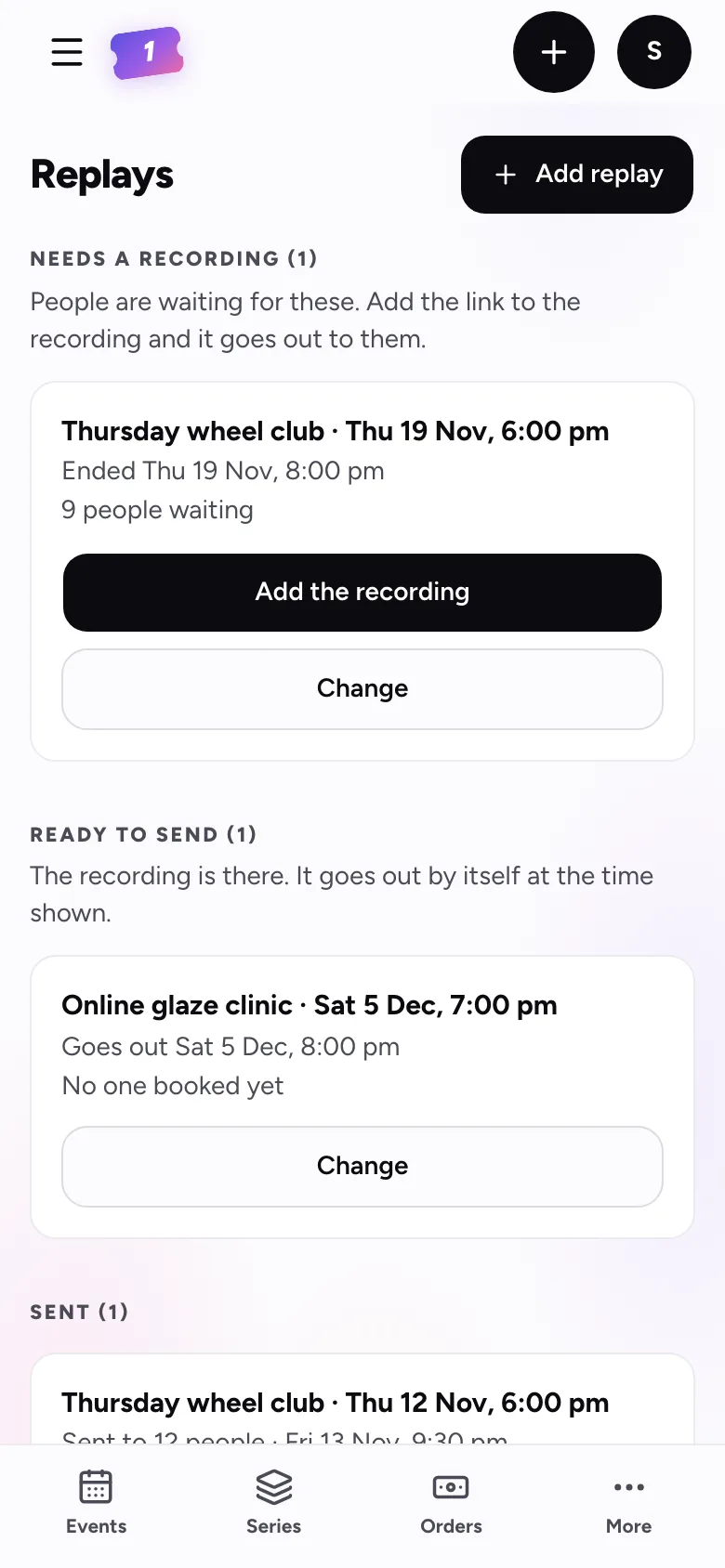
Choose Replays in the menu on the left, under Events (on a phone, More, then Replays). It's every recording in one place, most urgent first, in three parts:
- Needs a recording: people are waiting for these (they paid for the replay, have it with their subscription, or you said you'd add it), and there's no link yet. Each says when it ended, how many people are waiting and what they paid for the replay. Choose Add the recording to paste the link: it then goes out to them.
- Ready to send: the recording is there. Each says when it Goes out, or Waiting for you to send it, or On hold while we check the link, and who it goes to.
- Sent: who it went to, and when, for the last 30 days. While it's still going out, it says how many are left.
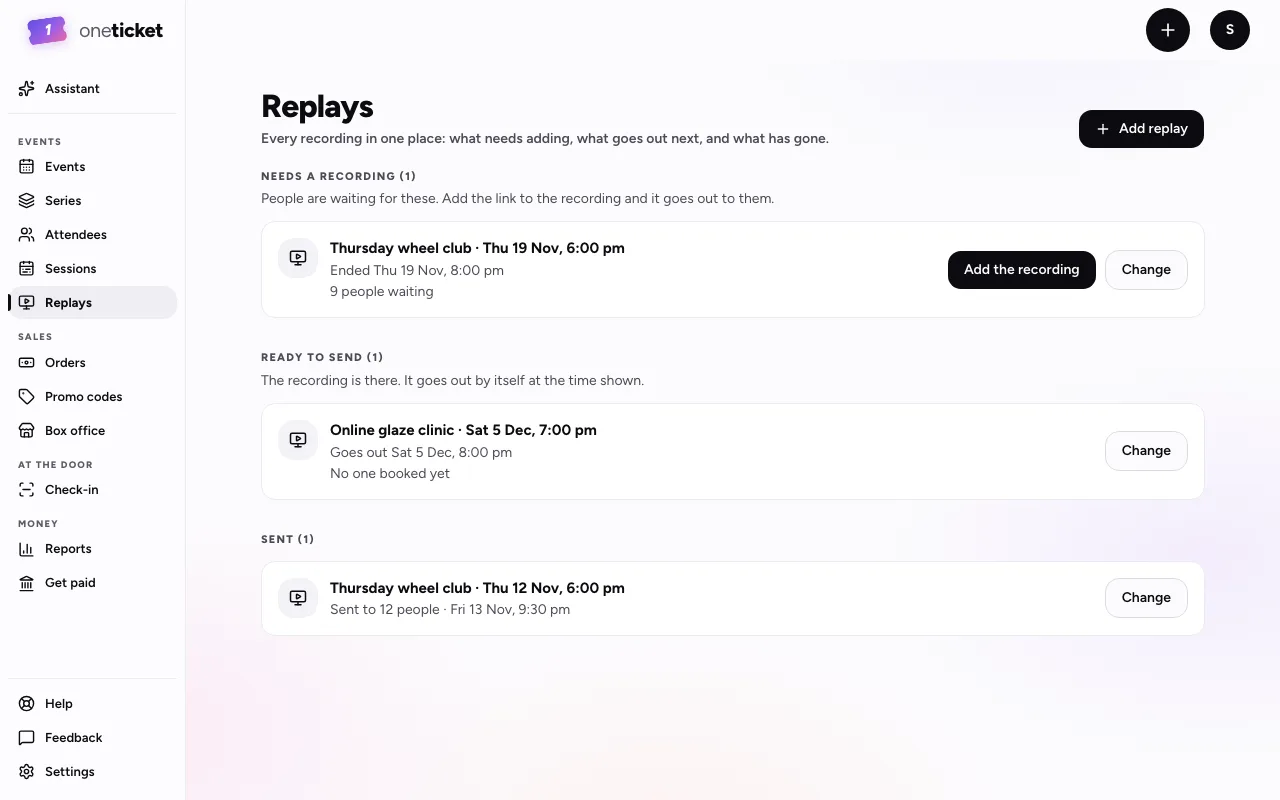
Choose a row to open that replay's own pop-up, over the page: an event's Replay panel (the same as on its page in the app), or for a session of a series, the series' Replay pop-up. Choose Change to open it in Add replay, filled in as it is.
Teammates who can see events but not change them see the page without its buttons: "You can see the replays here. Ask the organiser's owner to change them."
Add replay
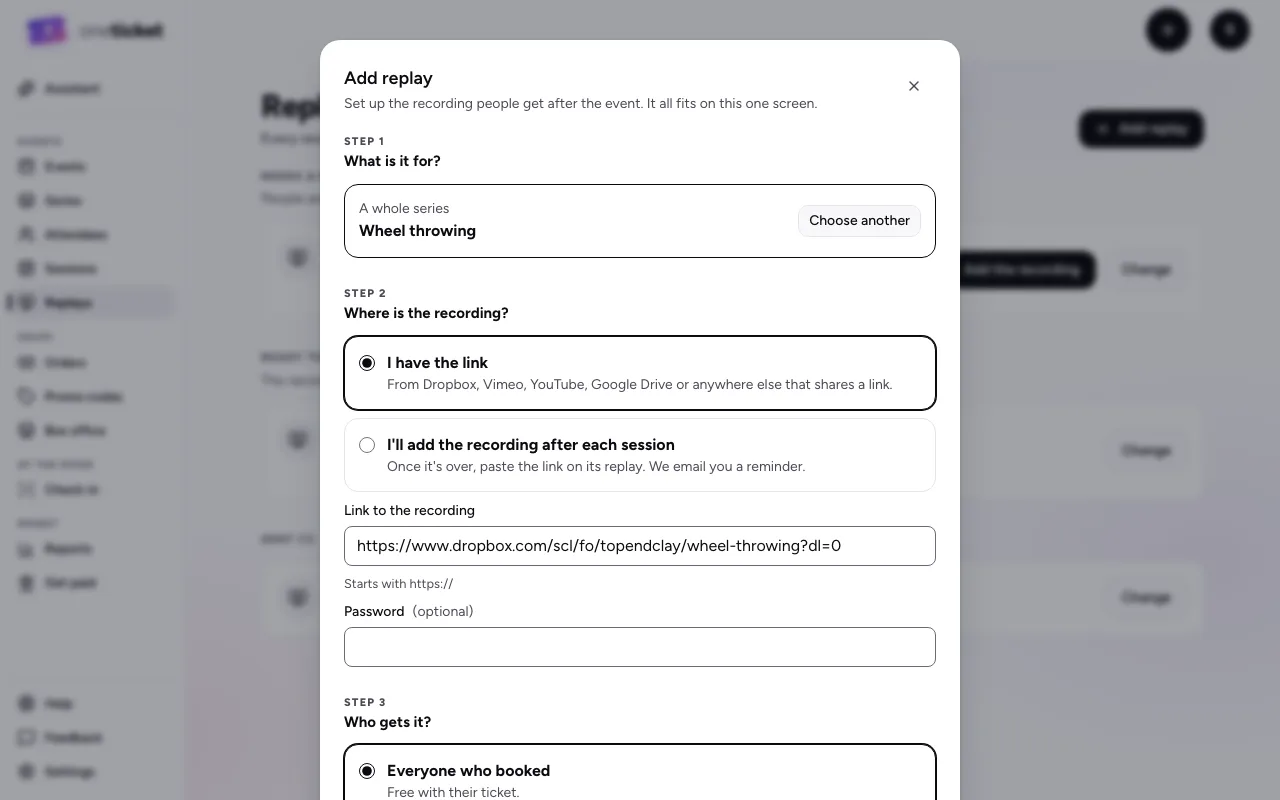
One screen sets up a replay, or changes one, in five steps.
- On Replays, choose Add replay.
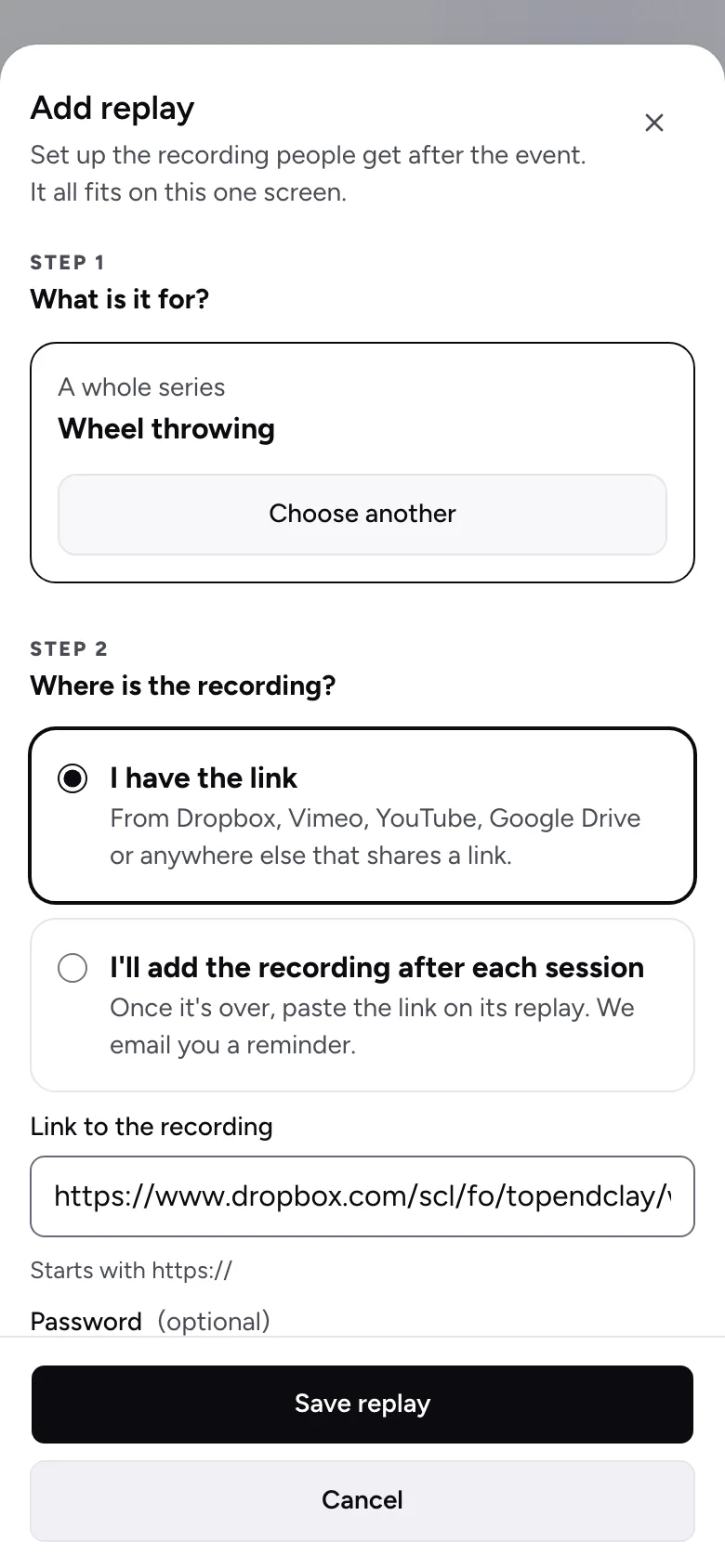
- What is it for? Choose A single event, A whole series (every session, now and to come), One schedule of a series (only one time, like the Tuesday night class) or One session of a series (just one date). Search by name and choose it. Choose another picks again.
- Where is the recording? Choose:
- I have the link: paste the Link to the recording (it starts with https://) and its Password (optional). Dropbox, Vimeo, YouTube, Google Drive or anywhere else that shares a link.
- I'll add the recording after each session (for one event or session, after it ends): once it's over, paste the link on its replay. We email you a reminder. Not for one schedule, which takes a link of its own. A free event or session needs its link now: to add it after, charge for it (step 4).
- Use the series' link (an event or session whose series has one): the link set for its series or schedule goes out.
- Who gets it? Choose Everyone who booked (free with their ticket) or Charge for it (only people who pay get the recording). To charge, tick As an extra on their ticket (added at checkout) and set the Price of the extra, tick A replay-only ticket (for people who can't come on the day) and set its price, or both. A series with plans or term passes also asks about Pass and subscription holders: see Replays on plans and term passes.
- When does it go out? Choose:
- When it ends (a series or schedule: When the session ends; one whose series sends them at its own time: As its series sends them),
- Some time after it ends: a number of hours after or days after (for one event, once it has ended), or
- Only when I press Send (a series or schedule): "It waits on its replay until you send it."
- Check and save: read the line it writes, such as "Wheel throwing: recordings from your Dropbox link, sent when each session ends, free for everyone who booked." Then choose Save replay.
It saves "Replay saved", and the replay shows on the page straight away. If past sessions of a series are waiting for it, it says so: open the replay to send them.
Send it now
- An event that's over: if the recording would go out at once, One Ticket asks first, Email all ticket holders now?, with how many get it. Choose Release and email to send it straight away (it can't be undone), or Not yet.
- Sessions of a series: open the series' Replay pop-up. A session waiting for you has Send now, and Send to all past sessions now sends every one waiting.
Set up a replay
- Open the event's page in the app (choose it on Events).
- Under Replay, choose the Replay row ("Send ticket holders a recording after the event").
- Paste the Recording link and its Password if it has one. It can be a video (such as YouTube, Vimeo or a Zoom recording) or audio: SoundCloud (a private link too), a Spotify episode, Apple Podcasts, a Google Drive or Dropbox share, or a link to an .mp3, .m4a, .wav or .aac file. Under the link, the panel says whether it's video or audio.
- Choose When to release:
- When the event ends,
- Release now: emails every ticket holder straight away, or
- Pick a date and time, in the event's time zone.
- Choose Save and schedule (or Save and release, and confirm with Release and email).
The panel shows the replay's state (Not released, Released or On hold), how many tickets and people it will email, and who it was sent to.
Sell the replay
Charge for the recording instead of giving it to everyone: as an extra people add when they book, as a ticket of its own for people who can't come, or both.
- Open the event's page in the app and choose the Replay row.
- Set up the Recording link and When to release as above.
- Under Sell the replay, tick:
- Add the replay at checkout, and set the Replay price: an extra buyers can tick when they book, "Add the replay +$15.00". One a booking, after your own extras.
- Replay-only ticket, and set the Replay-only ticket price: a ticket type called "Replay only" ("Can't make it? Get the recording after the event. No entry on the day."), last on the event page.
- Choose Save and schedule.
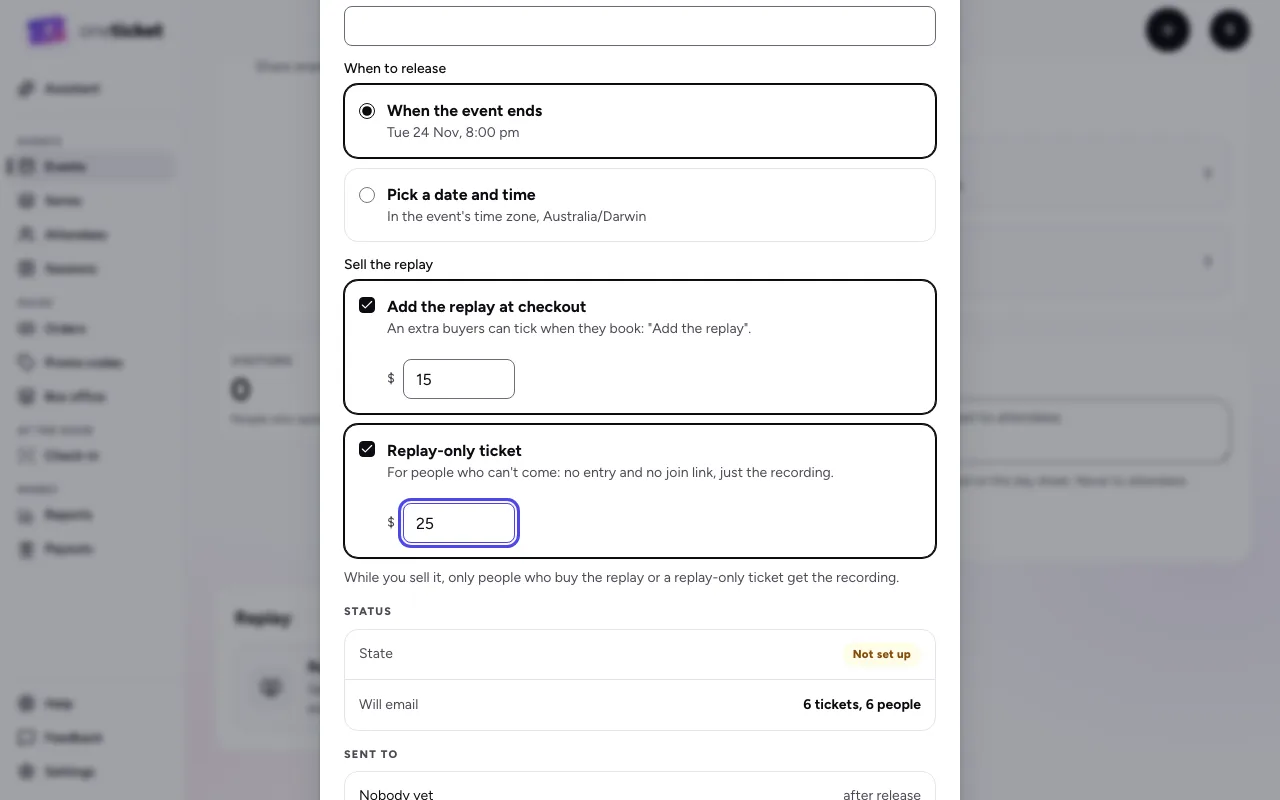
A replay-only ticket has no QR code and no join link, and never gets into a premiere's watch room. Scanned at the door, it says "A replay-only ticket: no entry. They get the recording after the event." Someone booking only replay-only tickets isn't offered Add the replay: theirs comes with them. Its price is set here (its places aren't limited), never in Edit all sessions.
To stop selling, untick it and save. One that has sold is taken off sale and kept, so the people who bought it keep the recording; one that hasn't is removed.
In a series with a replay link, the sessions it adds each night sell the replay the same way as the one before.
Who gets the replay
- Not selling it: everyone with a ticket.
- Selling it (the extra, a replay-only ticket, or both): only
- people who added the replay to their booking (and haven't had it refunded),
- replay-only ticket holders, and
- people who booked before you started selling it: they keep it.
- Subscribers and term pass holders: when the series' plans or term passes offer replays (below), only those who added them. When they offer none, every subscriber gets it.
A replay link for the whole series
For a series you record every week, give the series one link, such as a shared Google Drive or Dropbox folder you add each recording to. Every session without a recording of its own sends it.
- On the series' page, choose Set up replays (or Open) on its Replay card, or ⋮ → Replay.
- Under Replay link (Series link when the series has several schedules), paste the Link and its Password (optional), and choose When to send.
- Choose Save.
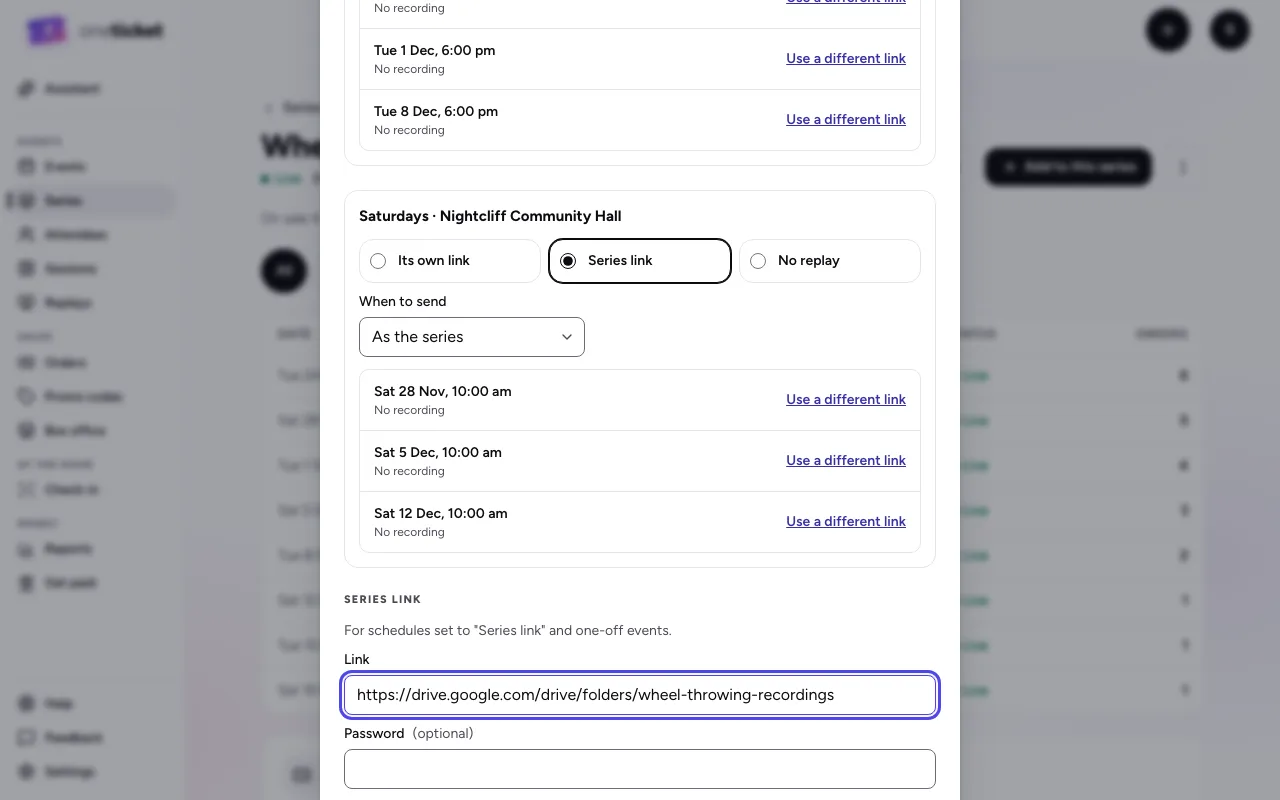
Each session sends it to its replay holders when it ends, or when its own replay is set to release. Set it for the first time and sessions already over aren't emailed it, though their tickets show it.
A session with its own recording sends that instead. In a session's Replay panel, leave Recording link blank to send the series' link. Removing a session's own recording asks "Remove it? The series replay link goes out instead."
Replays on plans and term passes
Let subscribers and term pass holders have the recordings of their sessions. Set it in any of these places; they all change the same prices:
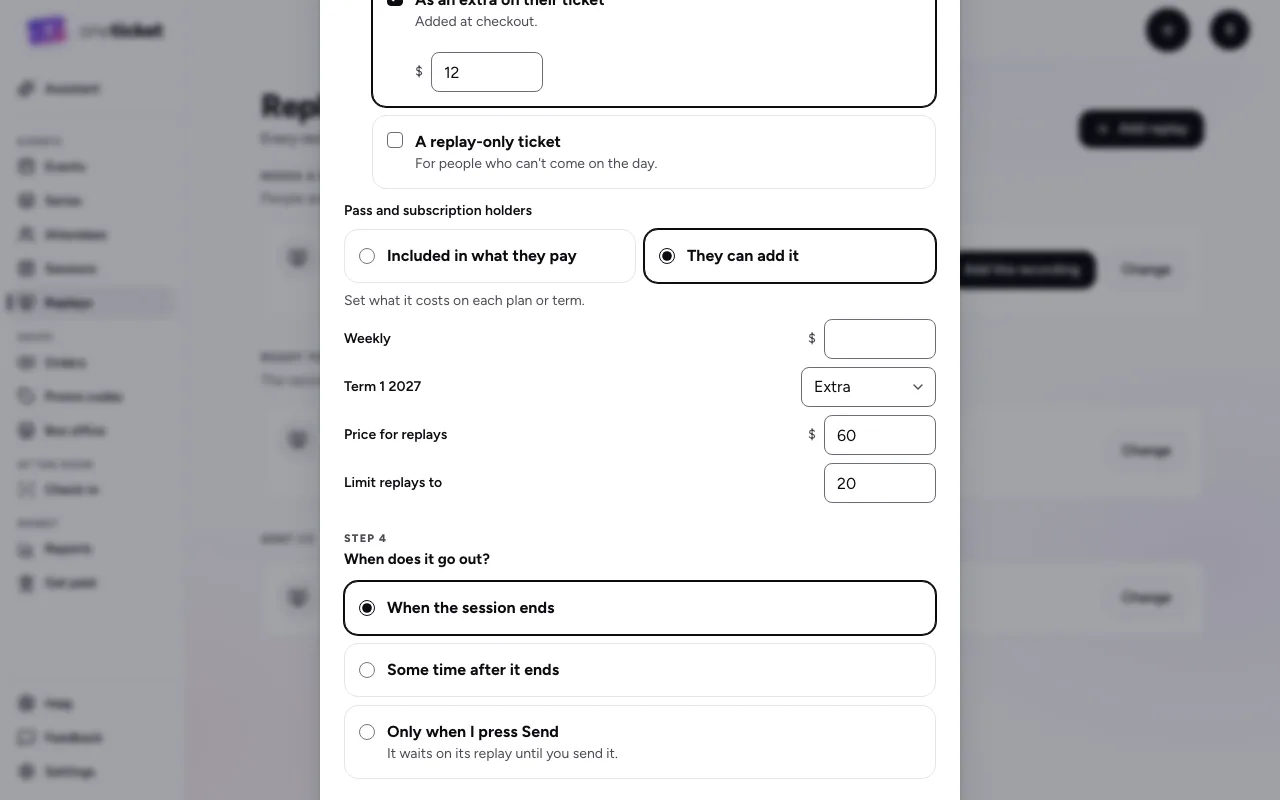
- Add replay (above), for the series: under Pass and subscription holders, choose Included in what they pay, or They can add it and set what it costs on each plan or term.
- The series' Replay pop-up: on the series page, choose Set up replays (or Open) on its Replay card. Under With plans and term passes, set a price a person for each billing option, and for each term pass (for the term). Leave a price blank to not offer it.
- A term pass's own form (below).
The series' subscription page lists each plan's price under Replays, with Set up in Replays → to change them.
A term pass's replays
Each term pass has its own choice, under Replays in Add replay, or in the pass's form on the series page (its Term pass card, Edit, then More choices):
- Not offered: pass holders don't get the recordings.
- Included: every pass holder gets the recordings, at no extra cost.
- Extra: pass holders can add them when they buy. Set the Price for replays (for one person, for the whole term), and optionally Limit replays to a number of people. Leave it blank for no limit.
The Term pass card then says "Replays included", or "Replays +" its price, with "up to 20 people" when it's limited. Until the series has somewhere for the recordings to go, the form says so, with Add where the recordings will go.
What buyers see
- Add replays on the subscribe page, with the price a person and the billing option's name ("Add replays +$5.00 a person, weekly", for a plan called Weekly) or "for the term". Ticked, Replays is its own line in what they pay.
- Replays included, with nothing to tick, for a term pass that includes them.
- Replays are full, once a limited extra has no places left: "Every place for replays has gone. You can still buy the pass without them." If the last place goes while they're paying, they're told and can buy the pass without them.
Those who add replays (or have them included) get every recording of the sessions their plan or pass covers, sent after each one. Once any plan or term pass offers replays, only those who have them get the recordings. People already subscribed when you first offer them keep getting them. Refunding a term pass whole ends its replays too. Each session still needs its recording, or the series' replay link.
On hold
If the link is from a site One Ticket doesn't know, the replay is held until your account is checked, then sent. The video and audio sites above, Google Drive and Dropbox are known; an audio file on your own website is held until then.
What ticket holders see
For a video, their ticket and email say Watch the replay. For audio, they say Listen to the recording: SoundCloud, Spotify episodes and audio files play right on the ticket, under your event's cover. A Google Drive or Dropbox share whose file name doesn't say what it is shows Open the recording.
If you haven't added the recording yet
When people are waiting on a session's replay (they bought it, have it in their subscription, or you turned it on for everyone) and the session ends with no recording link, we email you about an hour after it ends, with a button straight to where the link goes. If someone paid for it and there's still no link a day later, we email you once more. Once you add the link, it goes to everyone waiting within about 15 minutes; a series link added after a session is over waits for you to send it to that session. A replay set to go Only when I send it gets no email when the session ends; if people paid for it and it still hasn't gone a day later, we remind you to add the link or send it. To stop these emails, switch off Replay reminders in Preferences.
Change or remove it
Open the replay again to change the link or the time. Choose Remove replay and confirm to take it away: holders lose the recording.
Still stuck? Contact support and a person will get back to you.