Find an order
The Orders list, filters and search, and everything on an order's page.
Every booking is an order: who bought, for which event, how many tickets and what they paid.
The Orders list
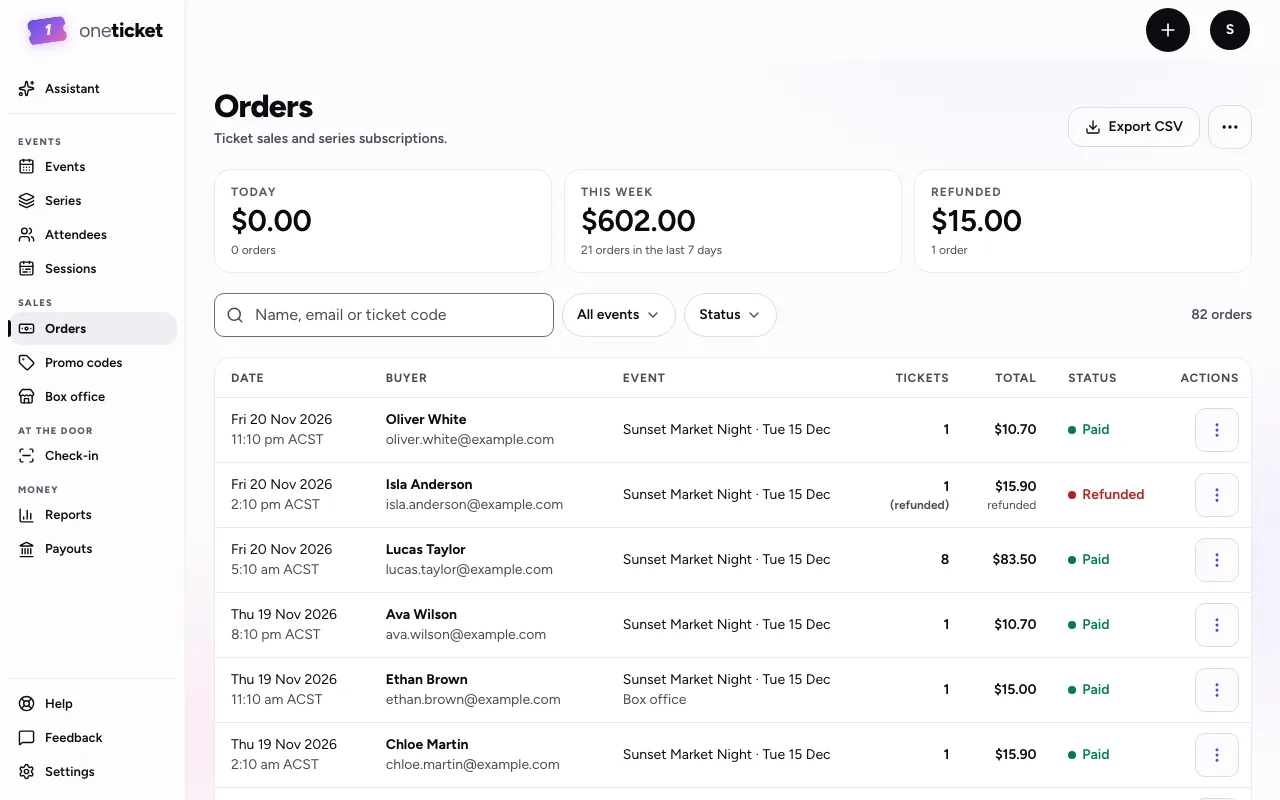
Choose Orders in the menu on the left. Newest orders are first, with the date, buyer, event, tickets, total and status. The tabs under the title switch between Orders and Subscriptions (once someone subscribes to a series).
To narrow the list:
- Type a name, email or ticket code in Search.
- Choose the Event chip: All events, Coming up, Past, Archived, or one event.
- Choose the Status chip. The default is All but pending and cancelled.
The list narrows as you type or pick: there's no button to press. Clear appears once a filter is on, and shows everything again.
Over the list, four figures add up what the filters leave: Today (sales and orders), This week (the last 7 days), Payment failed and Refunded (each only when there is one). Payment failed counts subscribers' tickets for a session after their plan's renewal failed: those rows say Payment failed: ticket stopped. Sales are ticket prices after discounts and refunds, without booking fees, as on Reports.
At the top right, Export CSV downloads the orders (see Export to a spreadsheet), and the ⋯ menu has Blocked buyers and Select orders (to delete several at once). On a phone, Export CSV is in that menu too.
Order statuses
- Paid: paid online or at the door.
- Free: a free booking.
- Partly refunded and Refunded: some or all of the money has gone back.
- Disputed: the buyer has disputed the payment with their bank. It still counts as a sale while the bank decides, and until then your payouts are held until after each event. We email you when it's decided. If the bank sides with the buyer, the money is taken back: the order says "Taken back by the buyer's bank (dispute lost)".
- Pending: a checkout that hasn't been paid yet.
- Cancelled: called off before it was paid, or a free order you deleted.
- Payment failed: ticket stopped, beside the status: a subscriber's ticket for a session after the time their plan was paid up to, because the renewal failed. Its ticket stops working until the payment goes through, and is issued again then.
An order's page
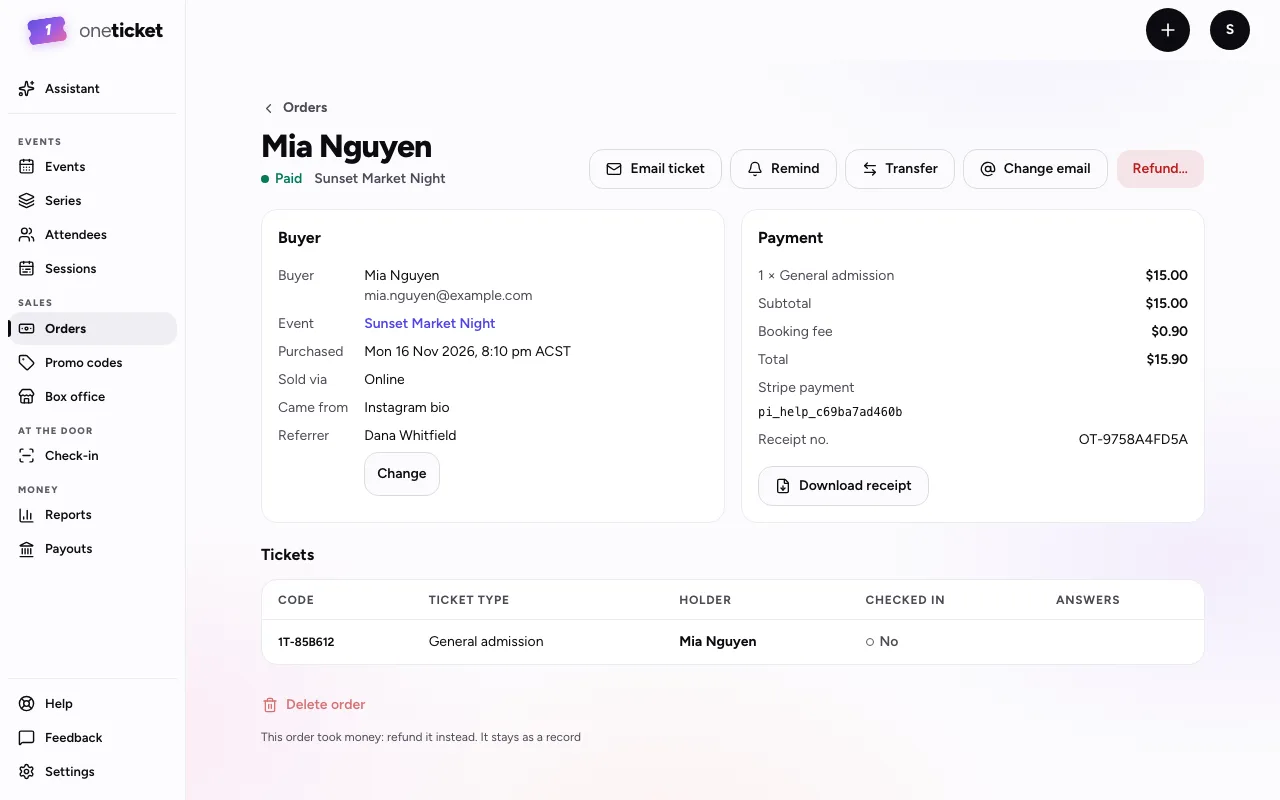
Choose an order to open it. You'll see:
- Buyer: their name and email, the event, when they bought and how (Sold via online, box office or subscription).
- Payment: the subtotal, any discount and promo code, the booking fee, the total and, for absorbed fees, what you receive.
- Tickets: each ticket's code, ticket type, holder, whether they've checked in, and their answers to your questions.
- Ticket email: whether it was Sent, Delivered, Delivery failed or Marked as spam. A bounced address also shows Email bounced on the Orders list.
- Receipt no. for a paid order, with Download receipt (or Download tax invoice): the same PDF the buyer was emailed. See Tax invoices.
- Referrer, when you have referrers: who each ticket chose, with Change to put it right.
An order can carry a note at the top when something happened to it:
- If the event was cancelled, it says whether the order was refunded in full, is still waiting on its refund, was paid in person (hand the money back yourself) or was free and cancelled. Its tickets no longer work.
- If the buyer or a guest used Didn't book this? from their ticket email, it says so, with the date. The booking was cancelled, and One Ticket won't email that address for your events again.
From here you can Email ticket, Remind, Transfer, Change email and Refund. See Email tickets and reminders, Transfer a ticket or change an email and Refund an order.
The order menu
On the Orders list, each order's menu (⋮) has Email ticket, Remind, Refund, Transfer, Block buyer and Delete (for an order that took no money: see Delete an order). To open the order, choose it in the list.
Still stuck? Contact support and a person will get back to you.